A) How do I sign up?
If you want to watch, comment & donate, you can create an account here for free.
B) How do I upload videos?
How to Import a Video in FTJ Pro
After purchasing FTJ Pro and having your email verified, follow these simple steps to import a video:
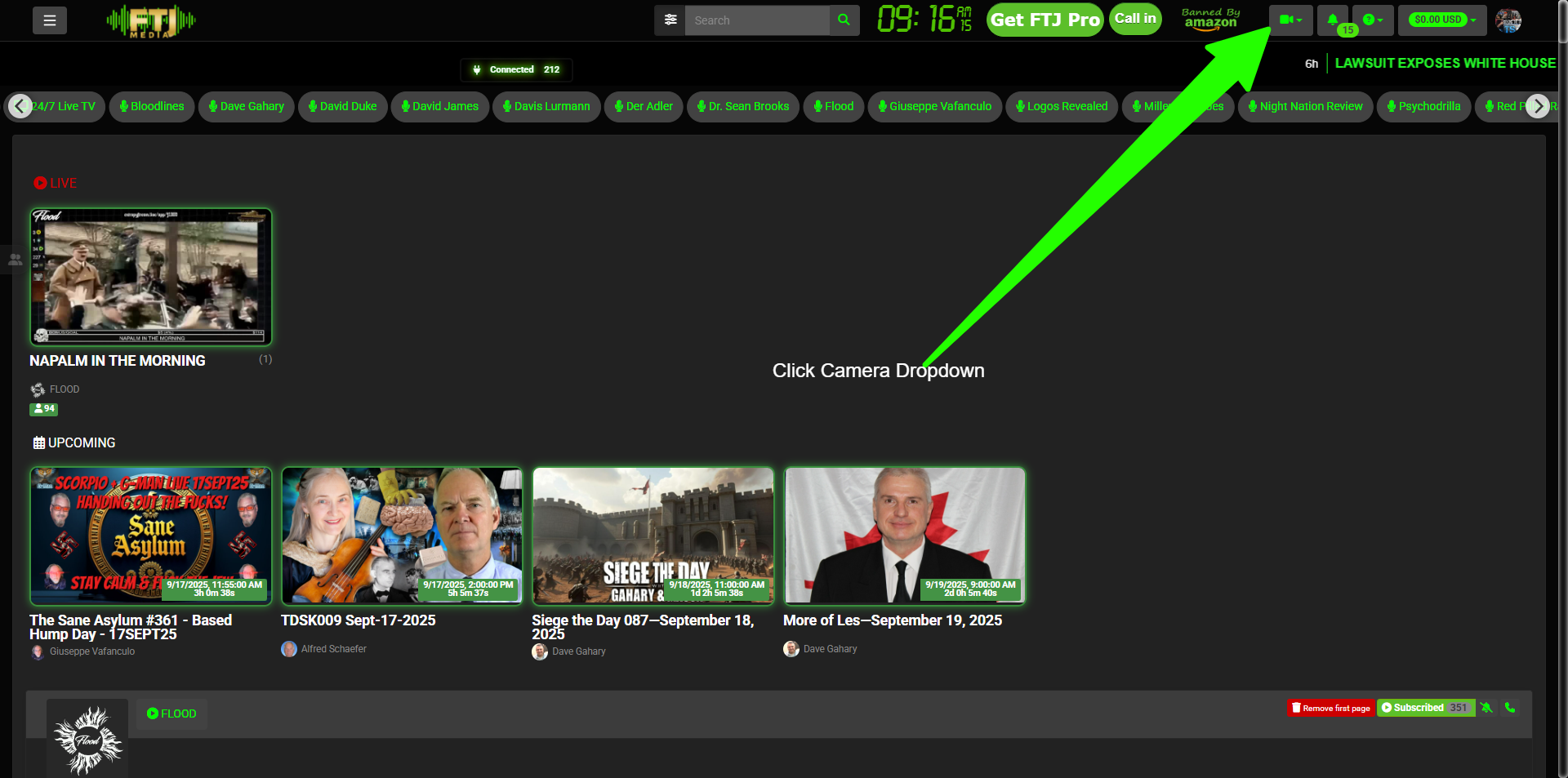
- Click the camera icon in the interface.
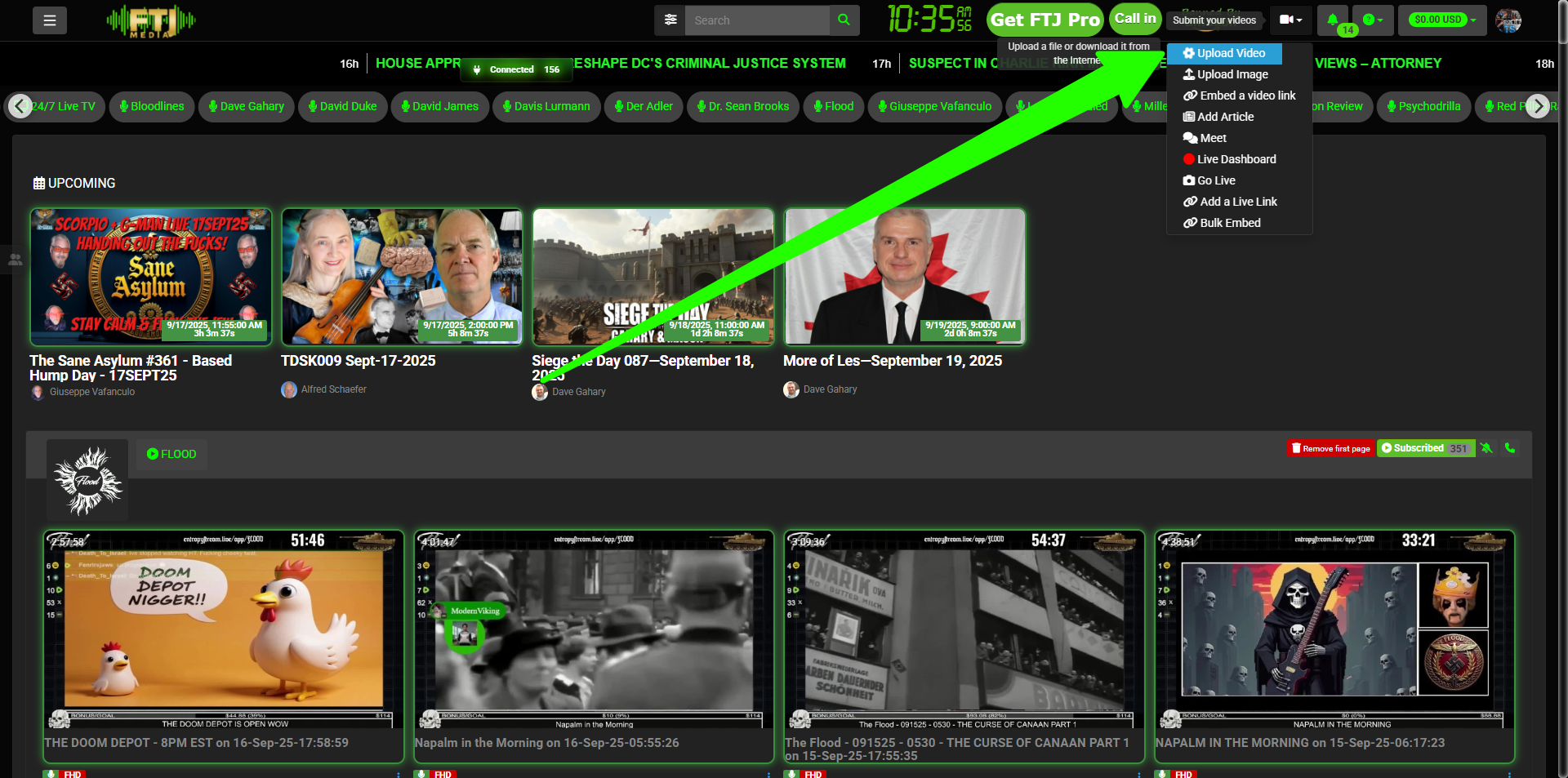
- Select Upload Video.
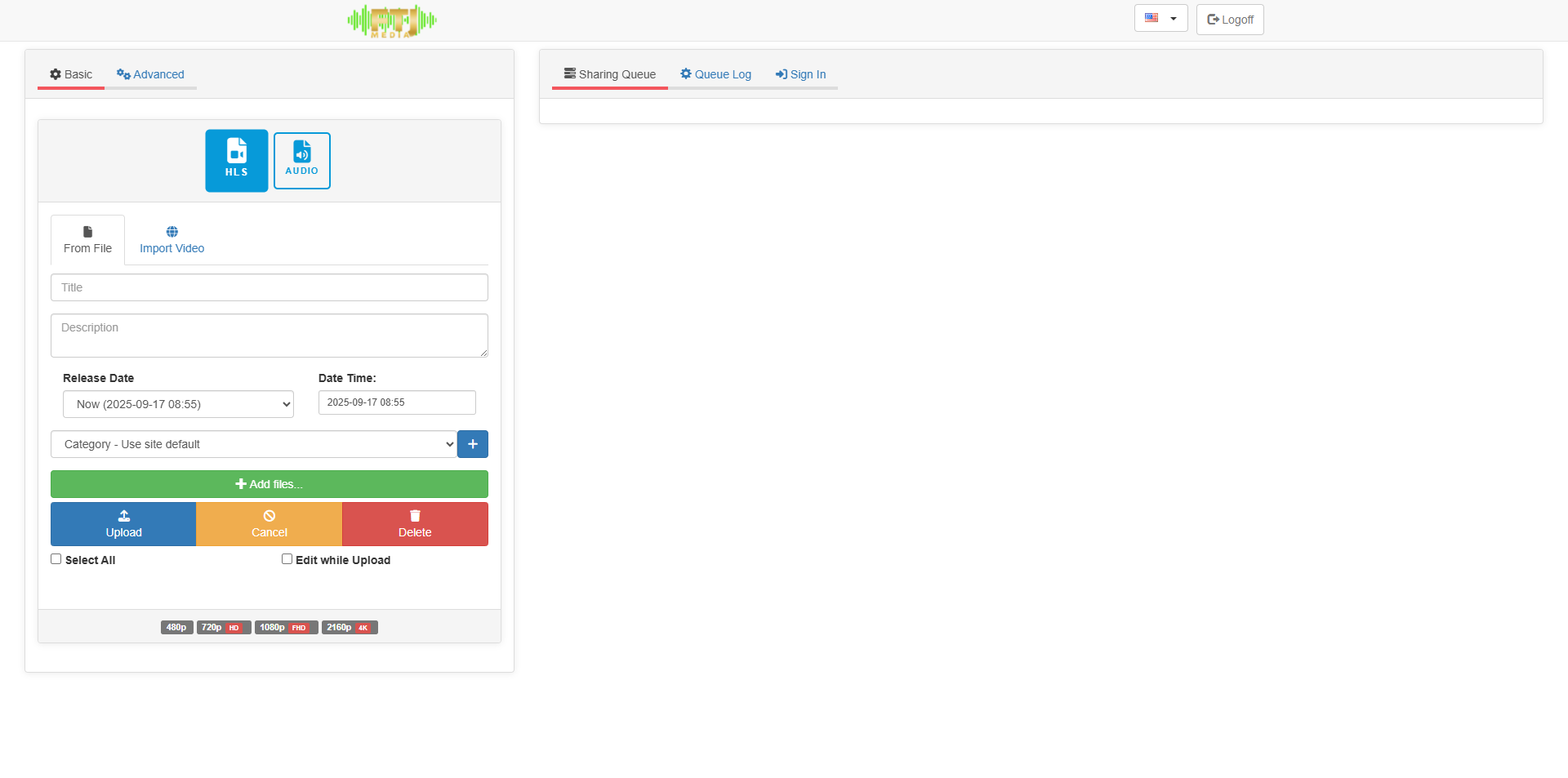
- You will now see the upload/import page.
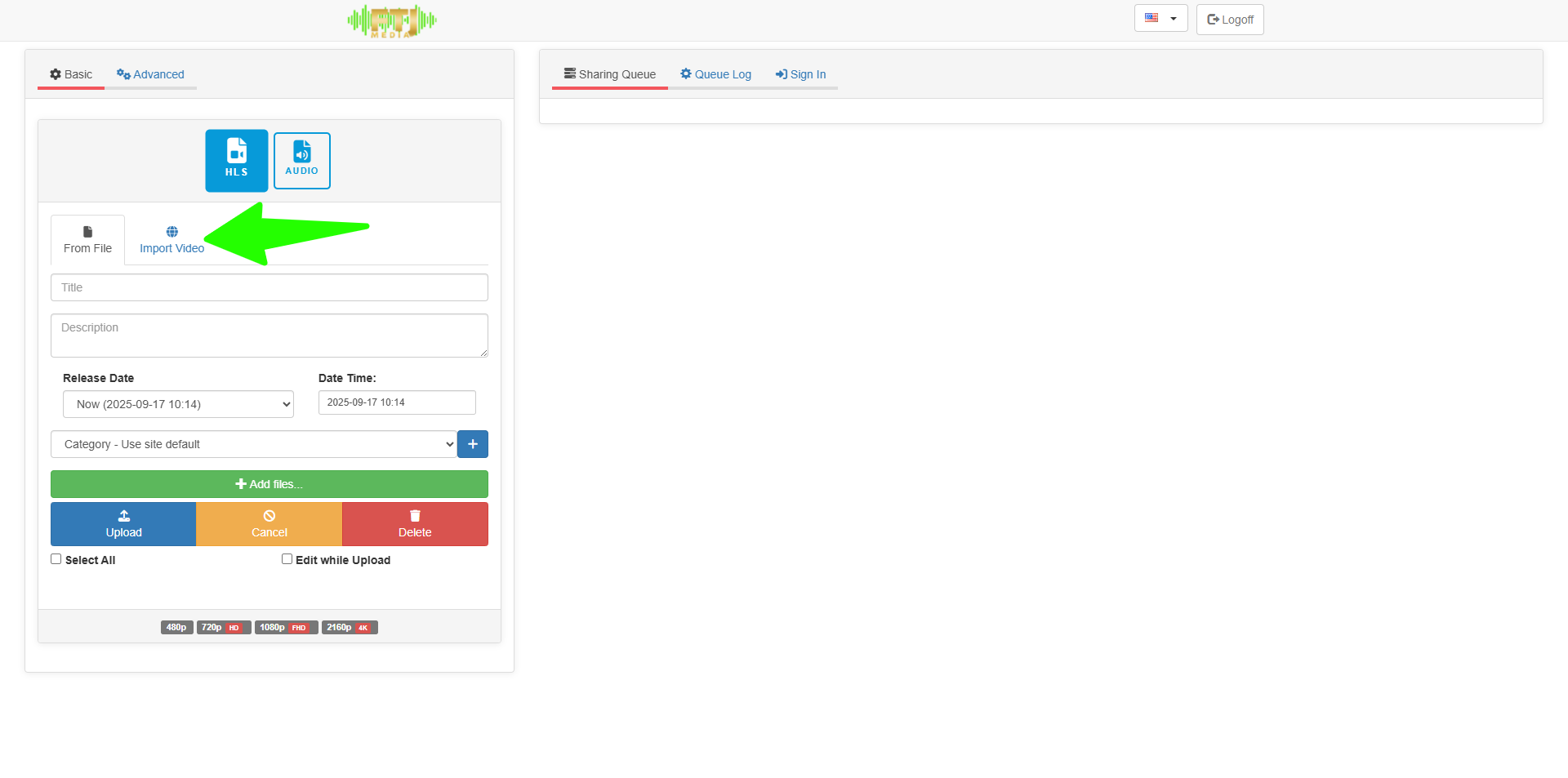
- Click Import Video.
- Paste the video link into the box, then click Share.

That’s it—the video should now begin importing. If you run into any issues or the images don’t display, the files may have moved; feel free to reach out for help.
Enjoy using FTJ Pro!
C) How do I create a Meet?
How to Start a New Meet in FTJ Pro
Follow these steps to create and join a new Meet:
- Click the video camera icon.

- Click Meet.
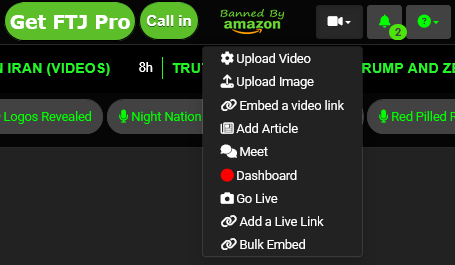
- Click New Meet.
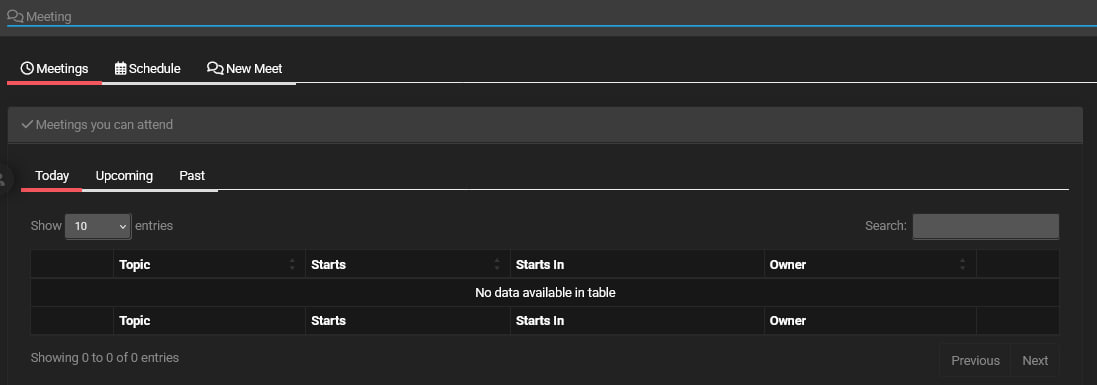
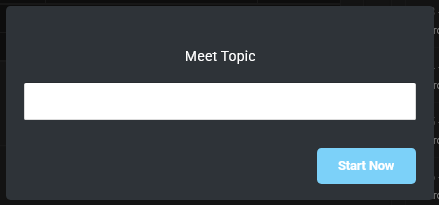
- The Meet Topic box will pop up.
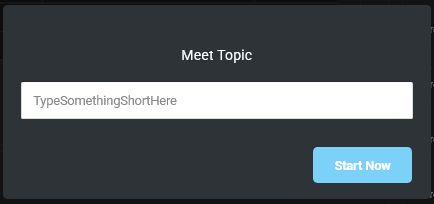
- Type a short title for the Meet and click Start Now.
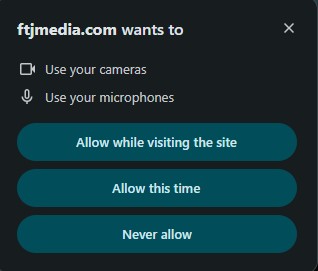
- This permission box may pop up.
- Your name will already be entered if you are logged in. Then enable microphone, speaker, and camera access, then click Join meeting.
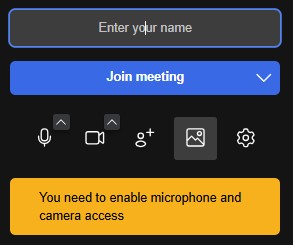
To invite others to your Meet, simply send them the URL shown in the address bar.
You also have the option to let them call into the Meet by phone.
D) How do I schedule a livestream?
How to Schedule a Live Broadcast in FTJ Pro
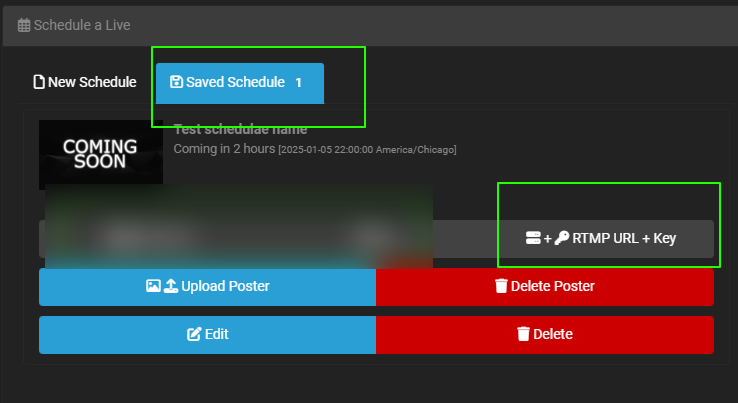
In your live dashboard, locate the schedule box and follow these steps to set up a scheduled broadcast:
- Look for the schedule box in your live dashboard.
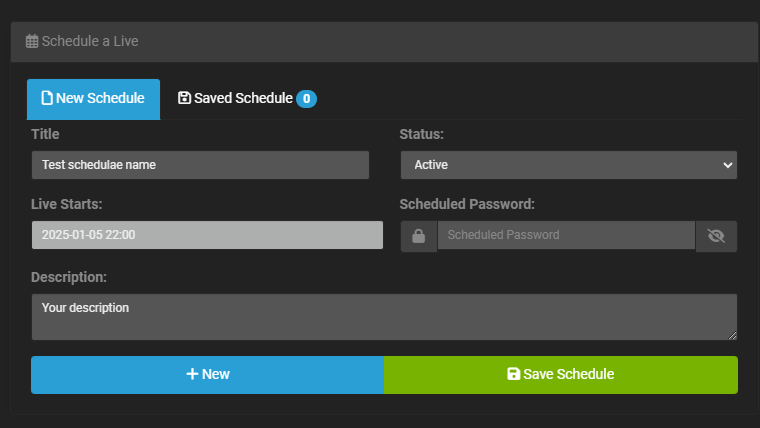
- Fill out the information: Title, Description, and select the date and time you want to go live.
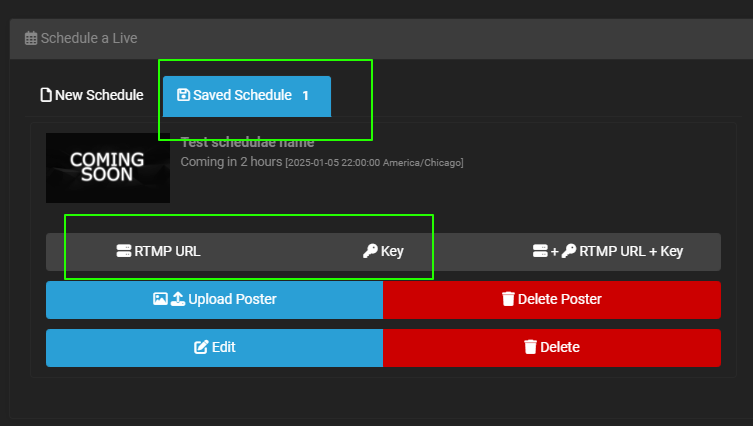
Important: You must use this new stream URL and key to broadcast with the scheduled setup.
You can also add a thumbnail by clicking Upload Poster.
If Using the Built-in Live Meetings System
- Click on the RTMP URL + Key option.
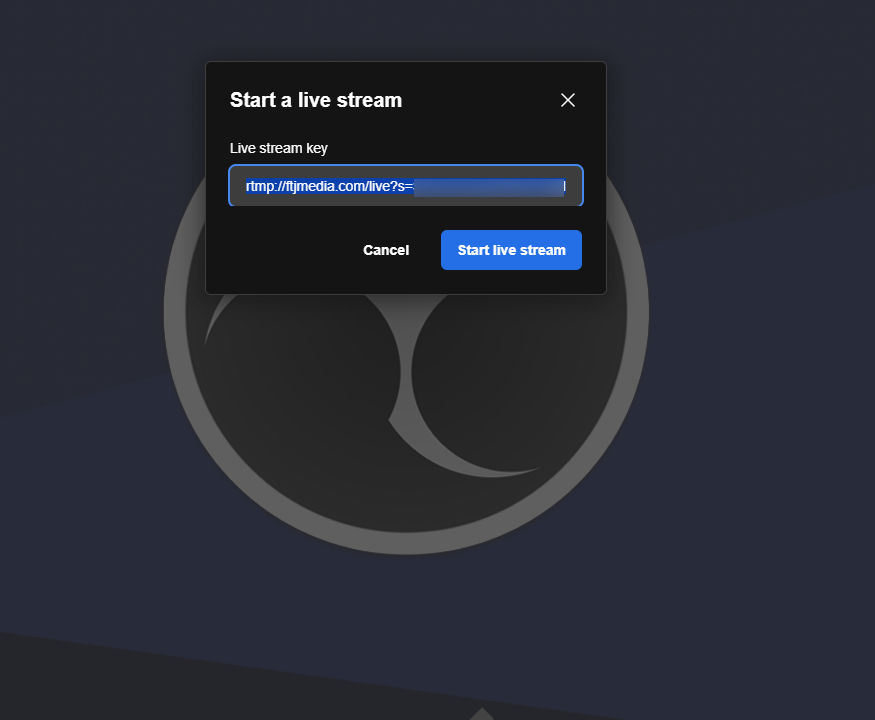
- When you click Go Live in the meeting, replace the existing stream key with the one you copied from the scheduled broadcast.
That’s it—your scheduled broadcast is set up and ready. If any images fail to load, the files may have been moved; let me know and I’ll assist further, sir.
Happy streaming!
E) How do I get livestream RTMP settings?
Accessing Your Live Streaming Settings in FTJ Pro
To access your live streaming settings and dashboard:
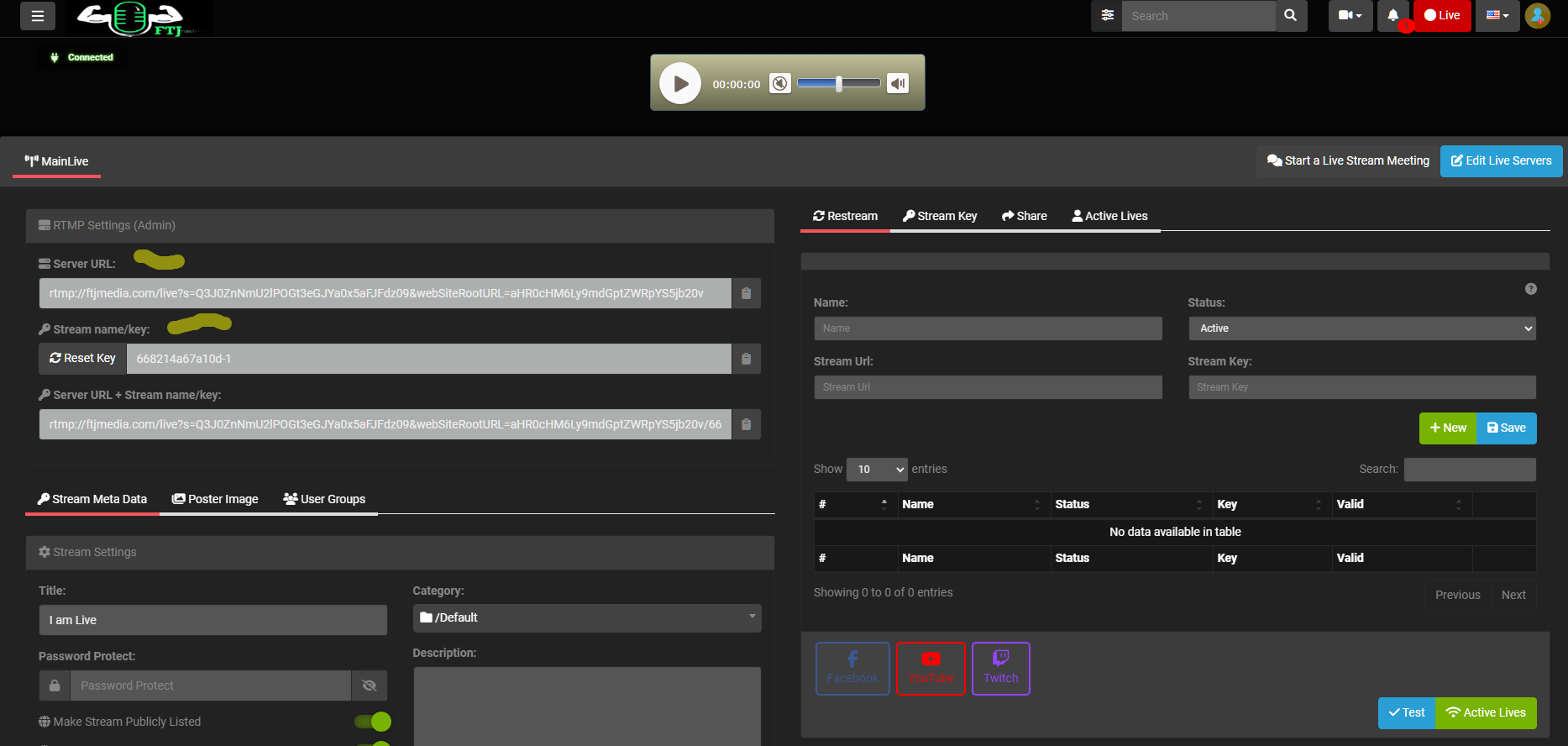
Note: You will only see these settings if you are an approved uploader or streamer. If the page does not show your dashboard options, your account has not yet been approved. Please reach out to us via Telegram or email the support team at support@ftjmedia.com to request approval.
We even have built-in options for restreaming to other platforms.
Once approved, you’ll have full access to schedule, go live, and distribute your streams. If the image doesn’t load or you need help with approval, just let me know, sir.
F) How do I restream to other video sites (X, Rumble, Odysee, DLive, YouTube, etc.)?
How to Set Up Restreaming in FTJ Pro
FTJ Pro includes a built-in restream feature, allowing you to broadcast live simultaneously to multiple platforms (YouTube, Twitch, Facebook, etc.) from your FTJ dashboard.
- Locate the Restream tab in your live dashboard.
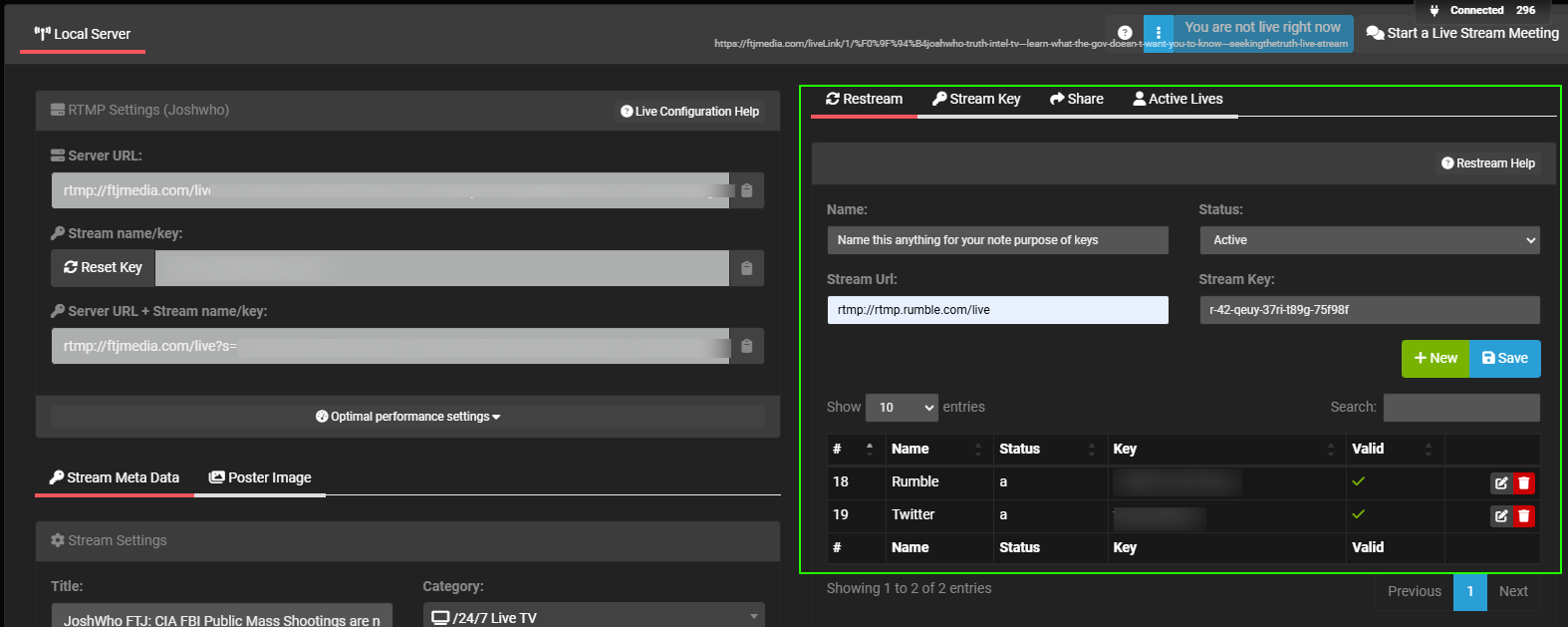
- Fill out the information for each destination platform (e.g., stream key, URL, or authentication details provided by the target platform).
- Click Save.

Once saved, when you go live on FTJ Pro, your stream will automatically broadcast to all the connected platforms at the same time—no extra software required.
That’s the beauty of built-in restreaming. If any images don’t display or you need help connecting a specific platform, reach out anytime, sir.
G) How do I customize my donation messages in chat?
How to Customize Tip Buttons in FTJ Pro
Tip buttons are fully customizable, allowing you to set specific donation amounts, custom messages, and emojis for your supporters.
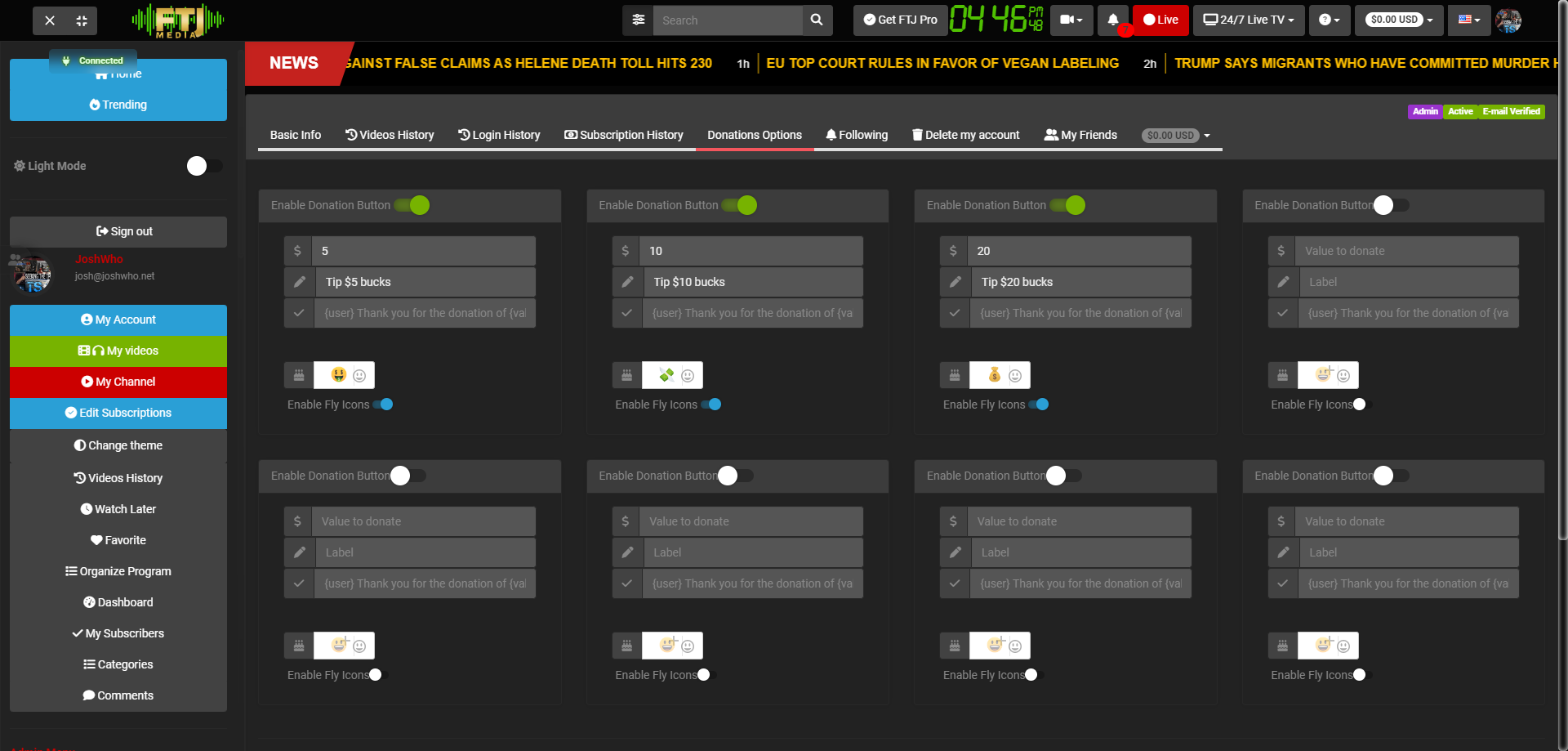
- Go to your My Account page: https://ftjmedia.com/user.
- Click on Donation Options.
From there:
- Create a new button for each value you want (e.g., $5, $10, $15, $20—or any custom amounts you prefer).
- Choose the message that appears when someone tips (use placeholders {user} and {value} so the donor’s name and amount auto-fill).
- Select an emoji for the button (optional but recommended for visual appeal).
- Enable each button by flipping the switch at the top of its settings.
Example Thank You Message:
Thank you {user} for your tip of {value}!
Important: Always include {user} and {value} in your message template so the system automatically inserts the correct name and donation amount when displaying the thank-you note.
Once saved, your custom tip buttons will appear on your profile and live streams. If the image doesn’t load or you need help with specific message ideas, just say the word, sir.
H) How do I create a poll in my livestream chat?
How to Create and Add a Poll to a Chat Room in FTJ Pro
Step-by-Step Guide
- Click the Actions menu (⋮) in the top-right corner of the chat.
- Select Poll Opinions.
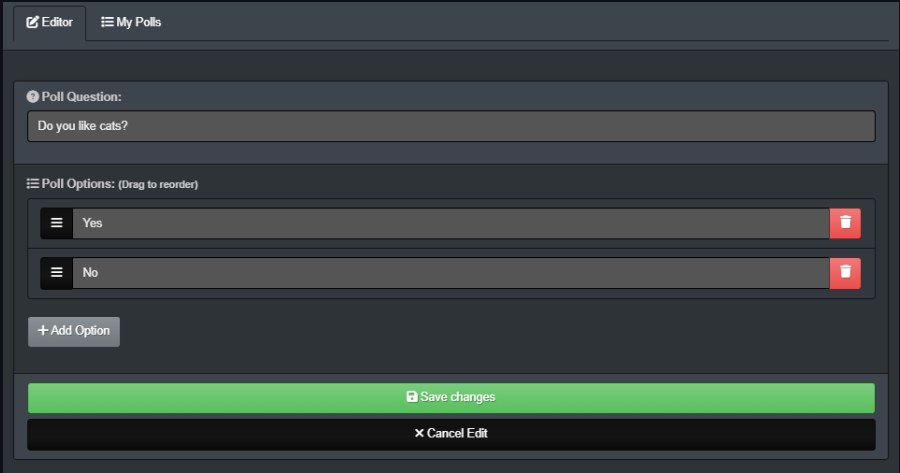
Fill in the poll details:
- Poll Question: Enter your question here.
- Poll Options: Add at least two answer choices (e.g., “Yes”, “No”).
- Use drag-and-drop to reorder the options if desired.
- Click + Add Option to include additional choices.
- Once your poll is ready, navigate to the My Polls tab.
- Click the green Add to Chat Room button next to the poll you want to post.
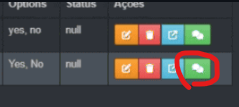
That’s it—your poll is now live in the chat room for everyone to vote on. Participants can see results in real time.
Polls are a great way to engage your audience. If the images don’t load or you need tips on crafting effective poll questions, just let me know, sir.
I) How do audience members call into my livestream?
How to Invite Guests to Join a Meeting by Phone in FTJ Pro
It’s actually quite simple and built directly into the Meetings system. Follow these steps to let participants join your live meeting via telephone:
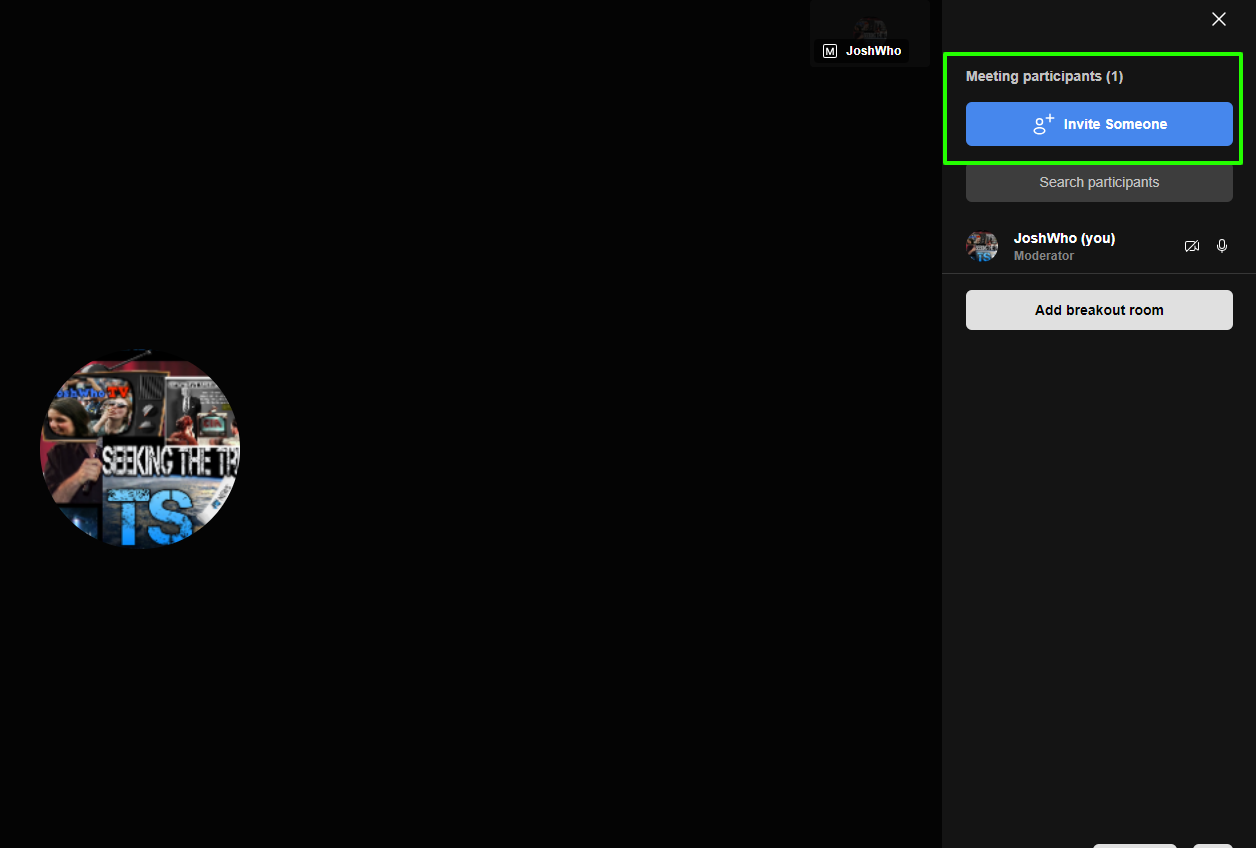
- Click the Participants button in your meeting interface.
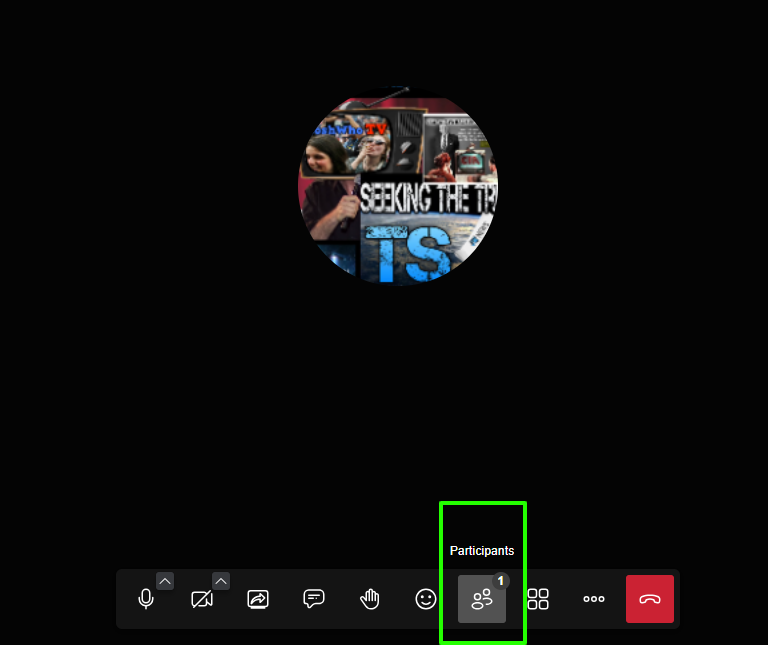
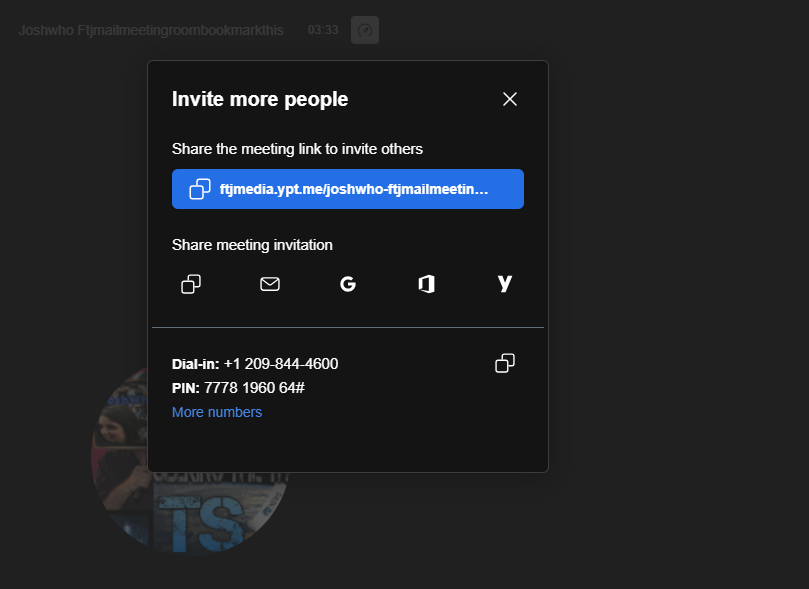
- Click INVITE.
- You will see a telephone number displayed in the invite panel.
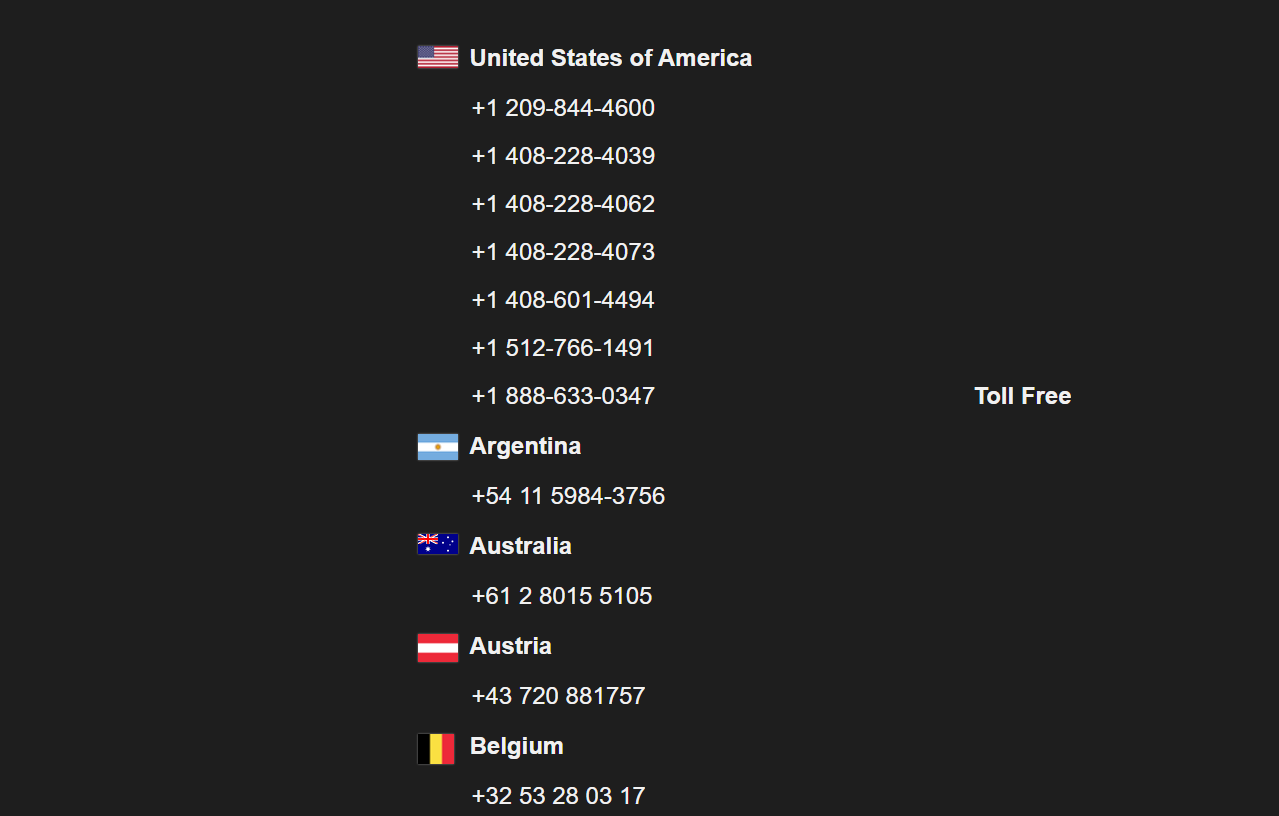
- If your guest is out of the country (or prefers a different number), click More Numbers to view a variety of worldwide telephone numbers, including some toll-free options.
Simply provide your guest with the displayed phone number and the PIN code. They can dial in and join your live meeting by phone—no app or internet required. That simple.
This feature makes it easy to include anyone, anywhere. If the images don’t load or you need help with other meeting features, just let me know, sir.
J) How do I use my wallet to transfer funds and tip hosts?
How to Load, Transfer, and Use Your FTJ Wallet
Every registered user has a built-in wallet. To use it for tips, donations, or transfers, you first need to load funds. Here’s how:
Step 1: Load Funds into Your Wallet
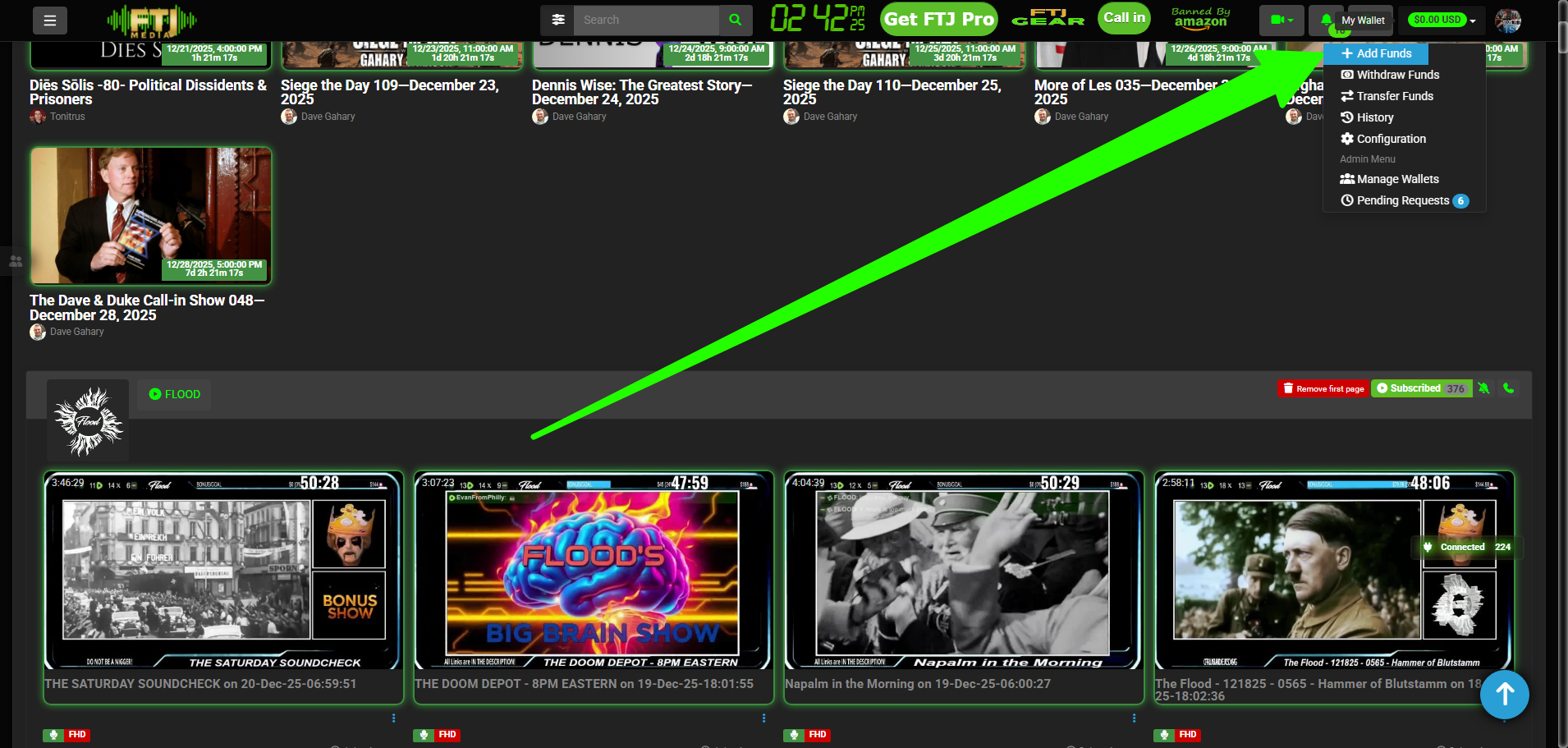
- Click the green dropdown menu (usually in your account or wallet area).
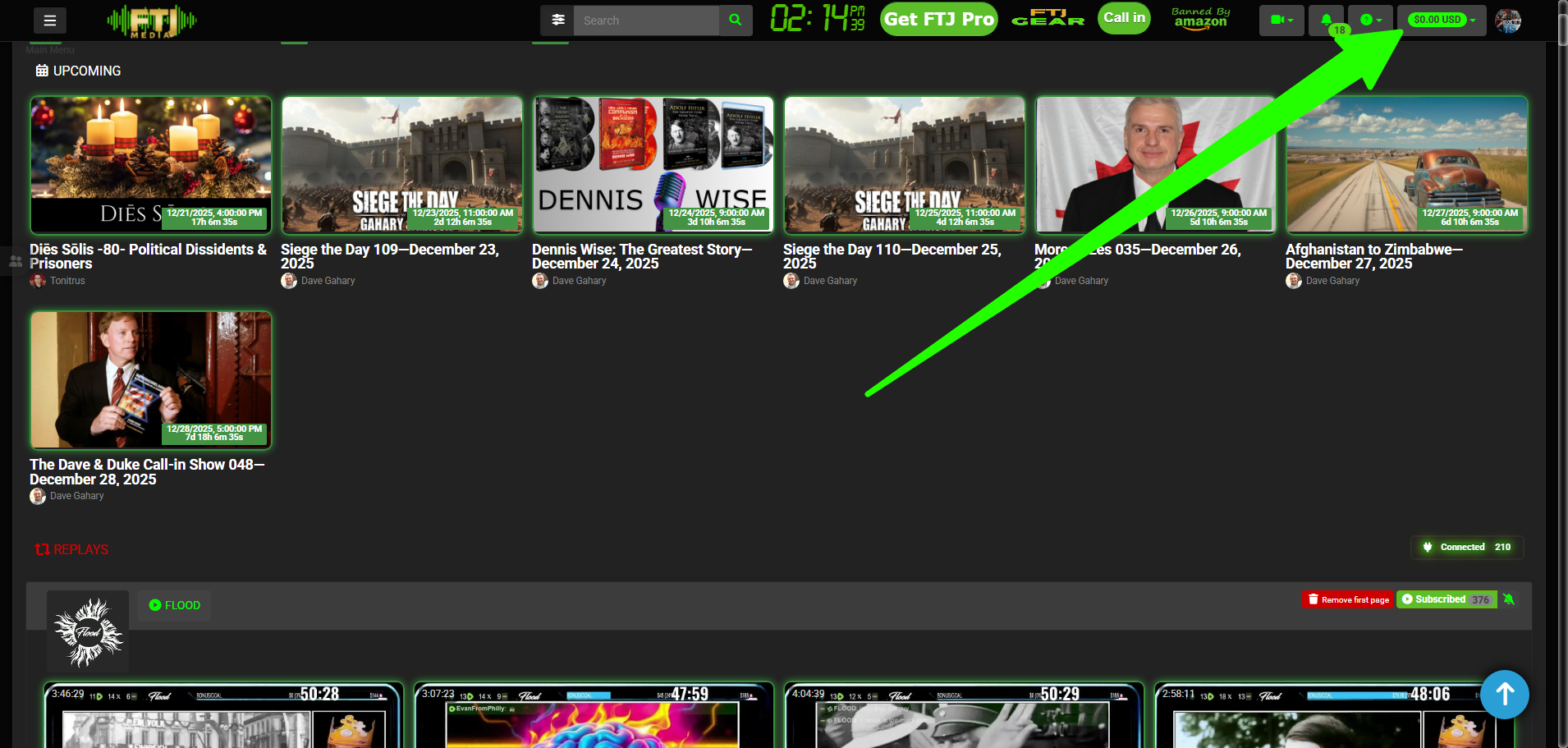
- Click Add Funds.
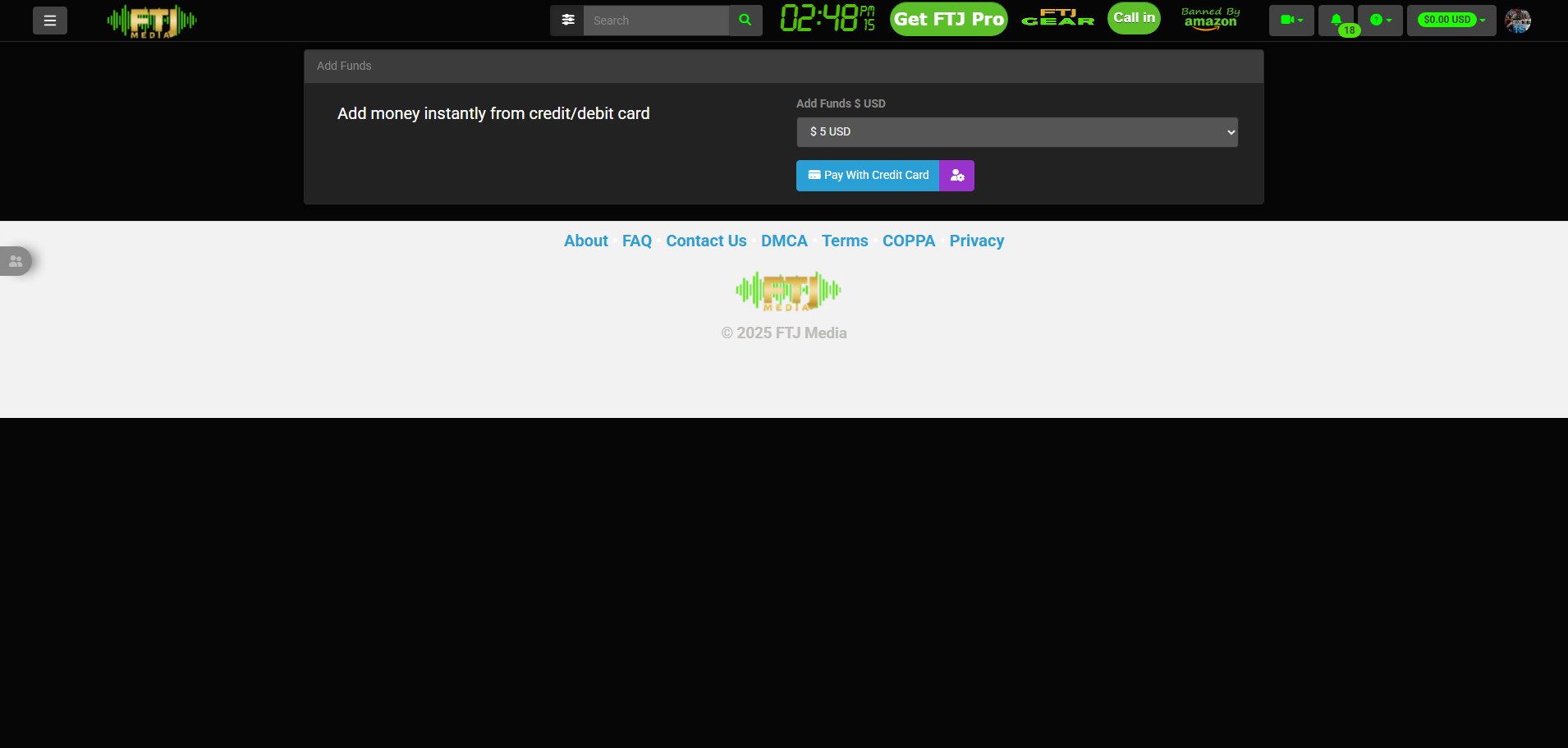
- Click the dropdown to select the amount you want to load.
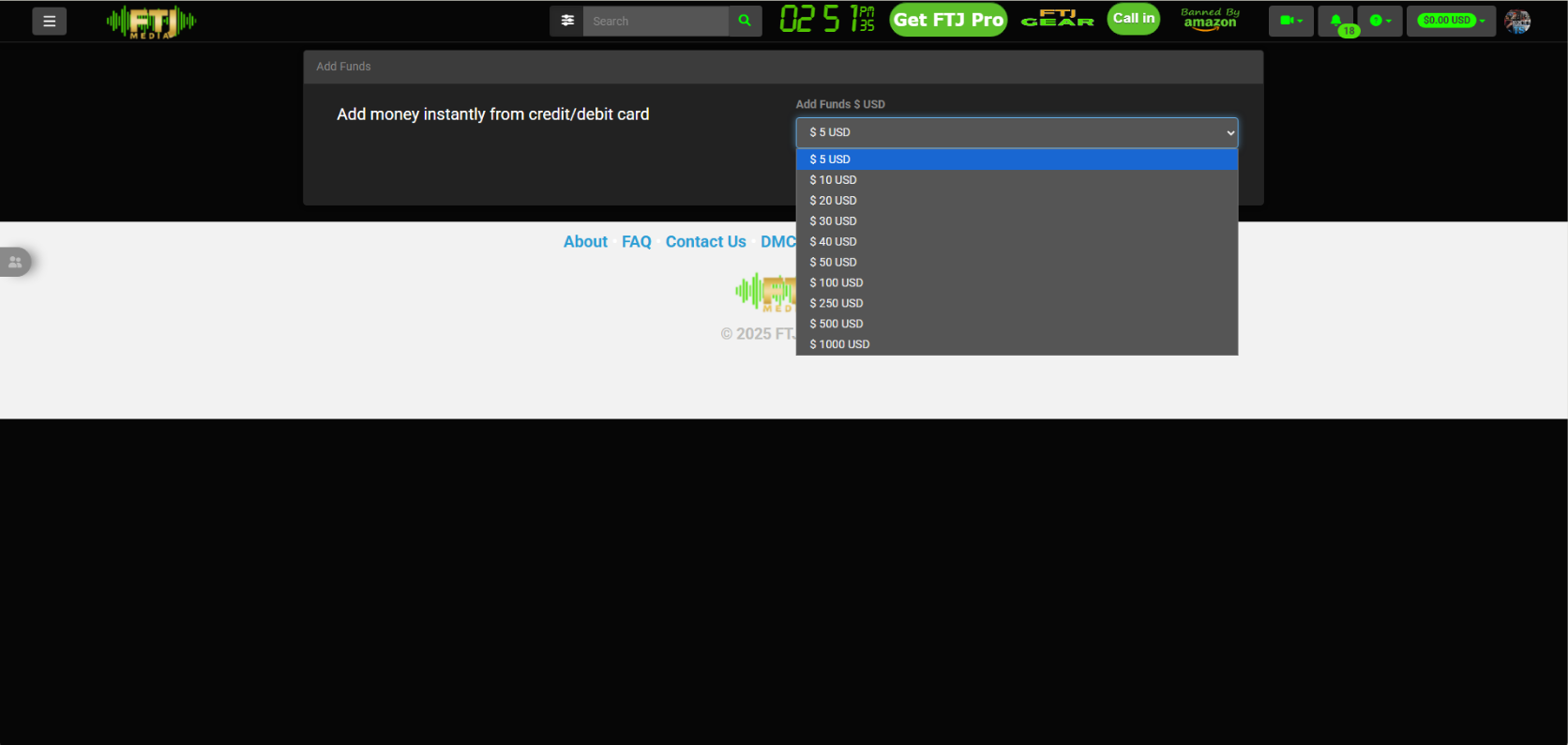
- Choose your desired amount from the list.
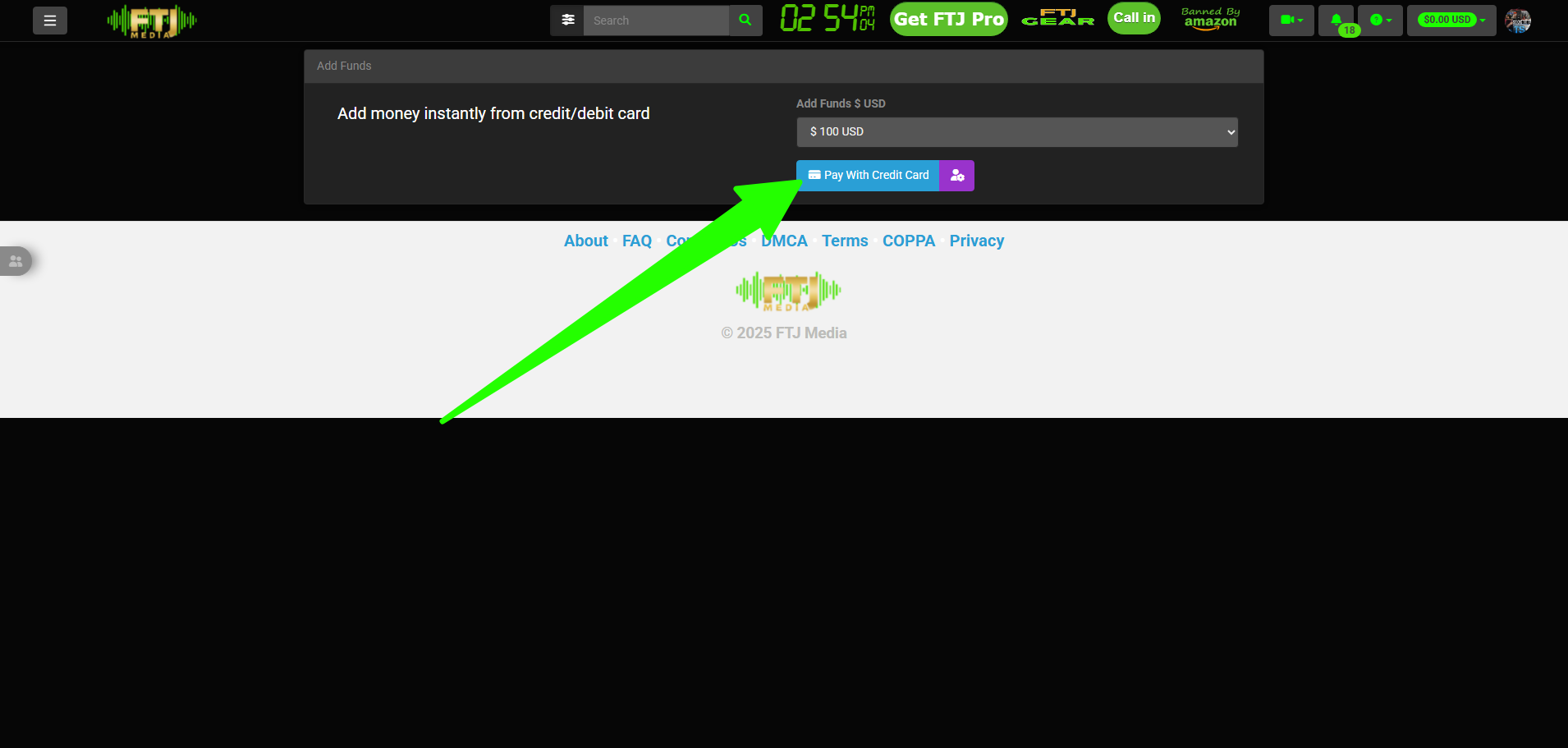
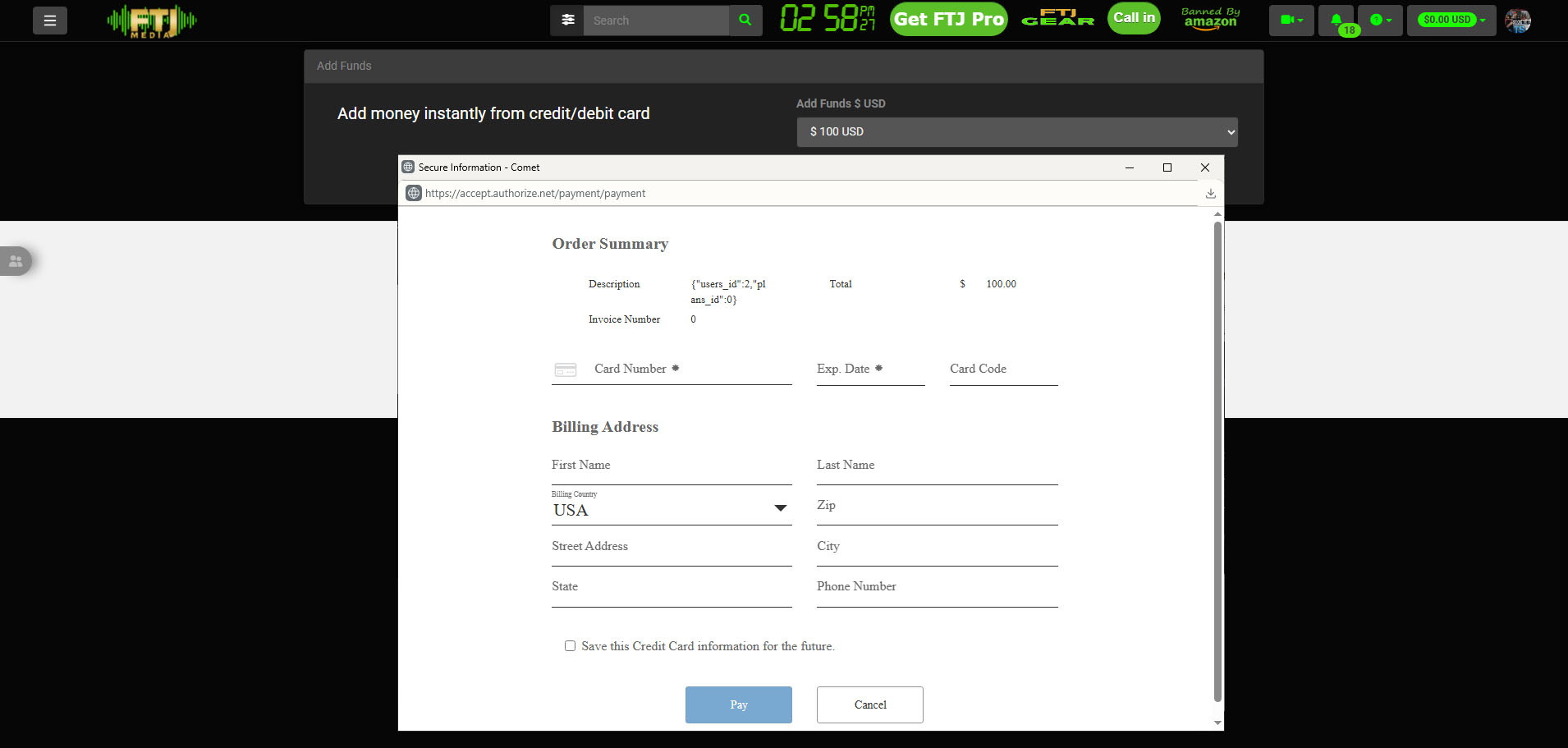
- Click Pay With Credit Card (or debit card).
- Fill out the payment form with your card details and complete the transaction.
Step 2: Transfer Funds to Another User
- Click the green dropdown again.
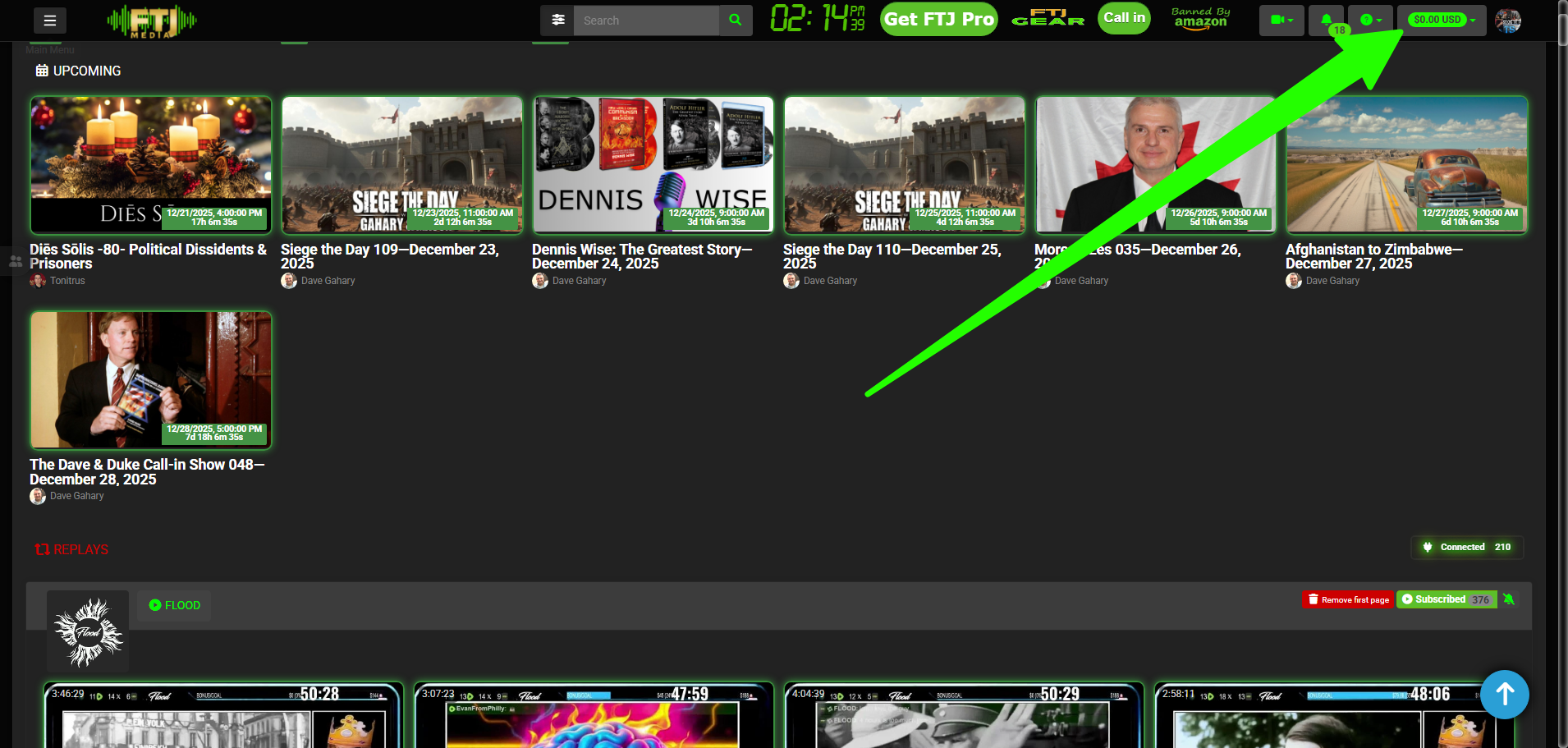
- Click Transfer Funds.

- Enter the amount, select the recipient, complete the CAPTCHA, and click Transfer Now.

Step 3: Tip Using Your FTJ Wallet
- If the chat is not open, click the chat icon in the bottom-right corner of your screen.
- Hover over the green box that says Tip using your FTJ wallet and click it.
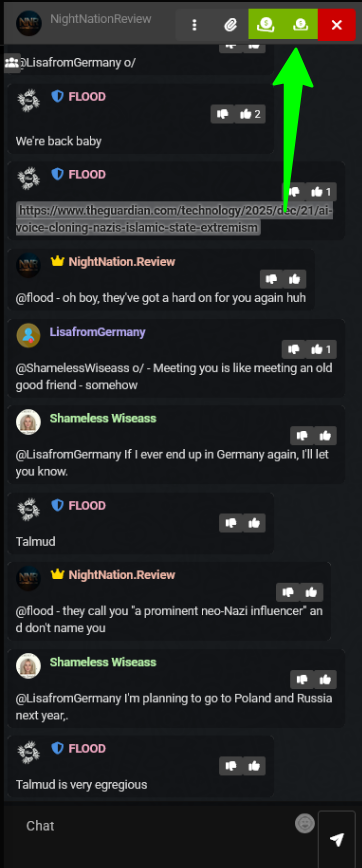
- In the Value to donate box, enter the amount (no $ symbol needed).
- Customize the message if desired (default is “Thank you for your great content!”).
- Click Confirm Donation.
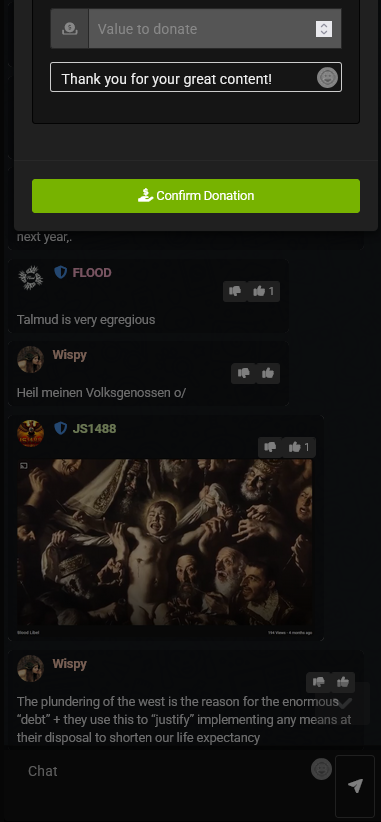
That’s it—your wallet is loaded, funds can be transferred, and tipping is seamless. If any images don’t load or you need clarification on wallet features, just let me know, sir.
Support your favorite creators easily with FTJ Wallet!
K) TMP Disabled – How do I redirect my livestream audience to another show after my show ends?
How to Use the Redirect URL Feature in FTJ Pro Live Streams
Redirect URL Feature
With the Redirect URL feature, live stream owners can instantly redirect all current live viewers to a specified URL—perfect for directing traffic to a new stream, a website, a donation page, or any external destination.
How to Use:
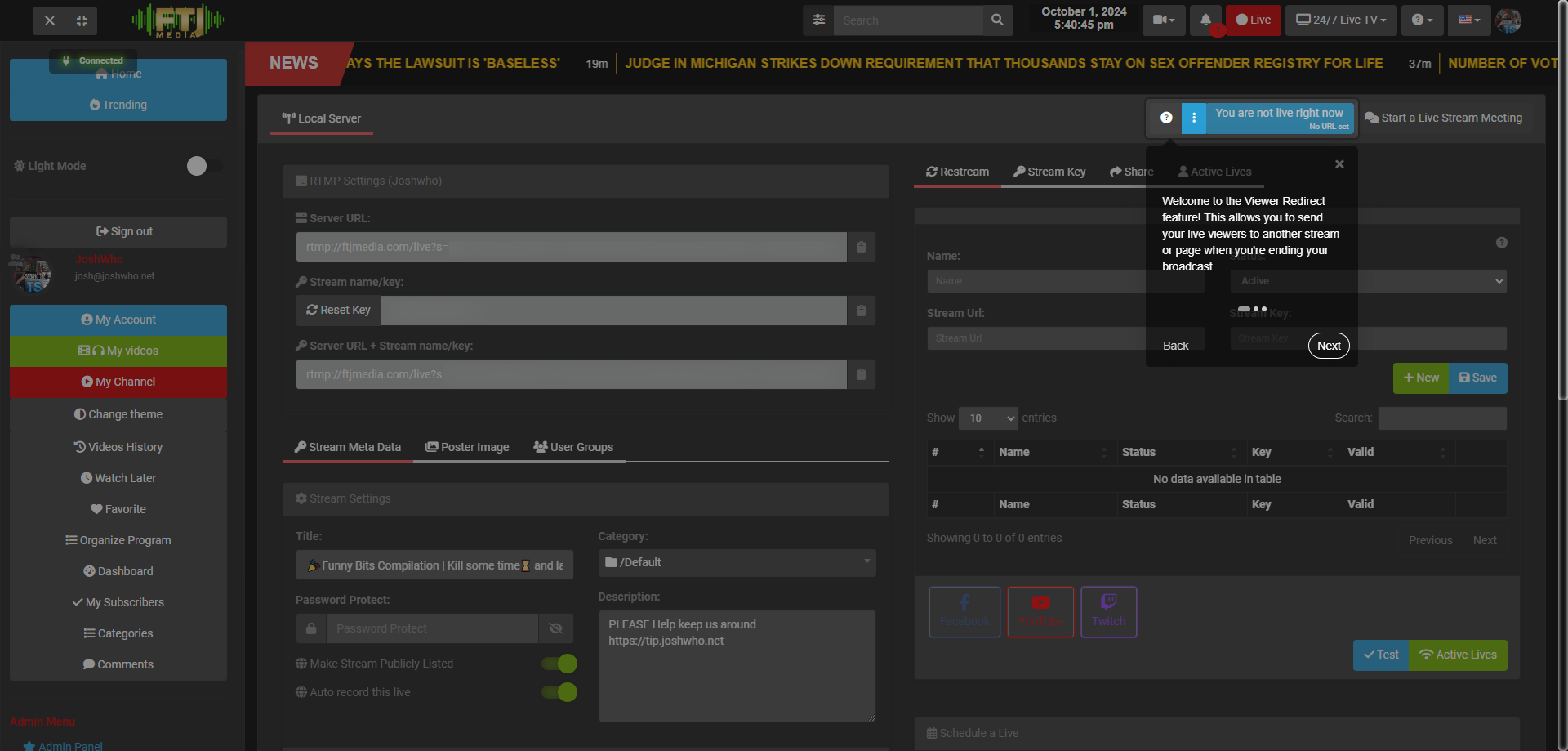
- Open the Live Panel: While your stream is live, access the live control panel (usually in your dashboard or streaming interface). You will find the redirect option there.
- Add a URL: Select from a list of your available live streams (if redirecting to another internal stream) or manually enter any URL, including external sites.
- Click the Redirect Viewers Button: After setting the desired URL, click the redirect button to immediately send all current live viewers to the new location.
Your viewers will see a brief notification message about the redirection, then they will be automatically taken to the specified link. This feature gives you full control over viewer flow during a live broadcast.
Use responsibly to keep your audience engaged. If the image doesn’t load or you need help with other live panel features, just let me know, sir.
L) How do I enable lobby mode?
How to Enable the Lobby Feature in FTJ Pro Meetings
Enable Lobby
The Lobby feature works similarly to Streamyard’s waiting room: it places your guests in a private backroom until you manually approve them to join the main meeting. This prevents unwanted participants or abuse and gives you full control over who enters.
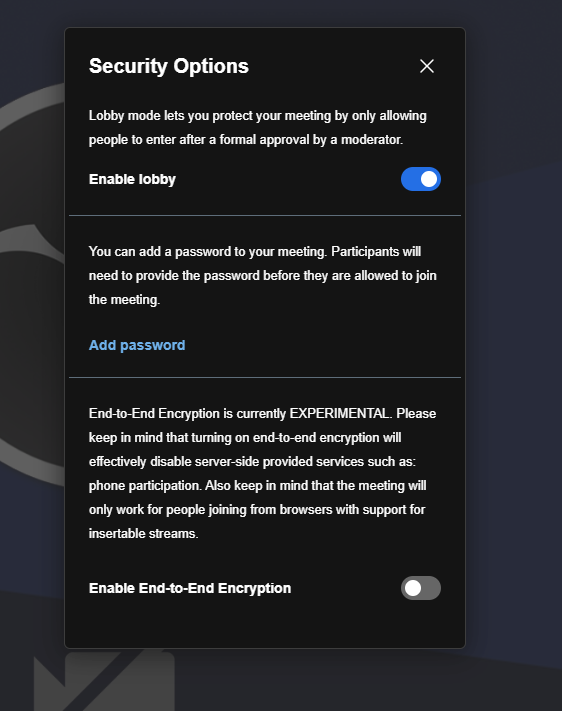
How to enable it:
- Go to your meeting settings or create a new meeting in FTJ Pro.
- Find the Enable Lobby option (usually under participant controls or security settings).
- Toggle it on.
Once enabled, incoming guests will wait in the lobby. You can preview them, chat privately if needed, and approve or deny entry from the participants panel—keeping your meetings secure and professional.
Perfect for interviews, panels, or any stream where guest control is important. If the image doesn’t load or you need help locating the setting, feel free to ask, sir.
M) How do I post an article?
How to Create and Publish an Article in FTJ Pro
Note: You must have an active FTJ Pro subscription to access the Articles feature.
- Click the camera icon dropdown menu (usually in the main navigation or content creation area).
- Select Add Article.
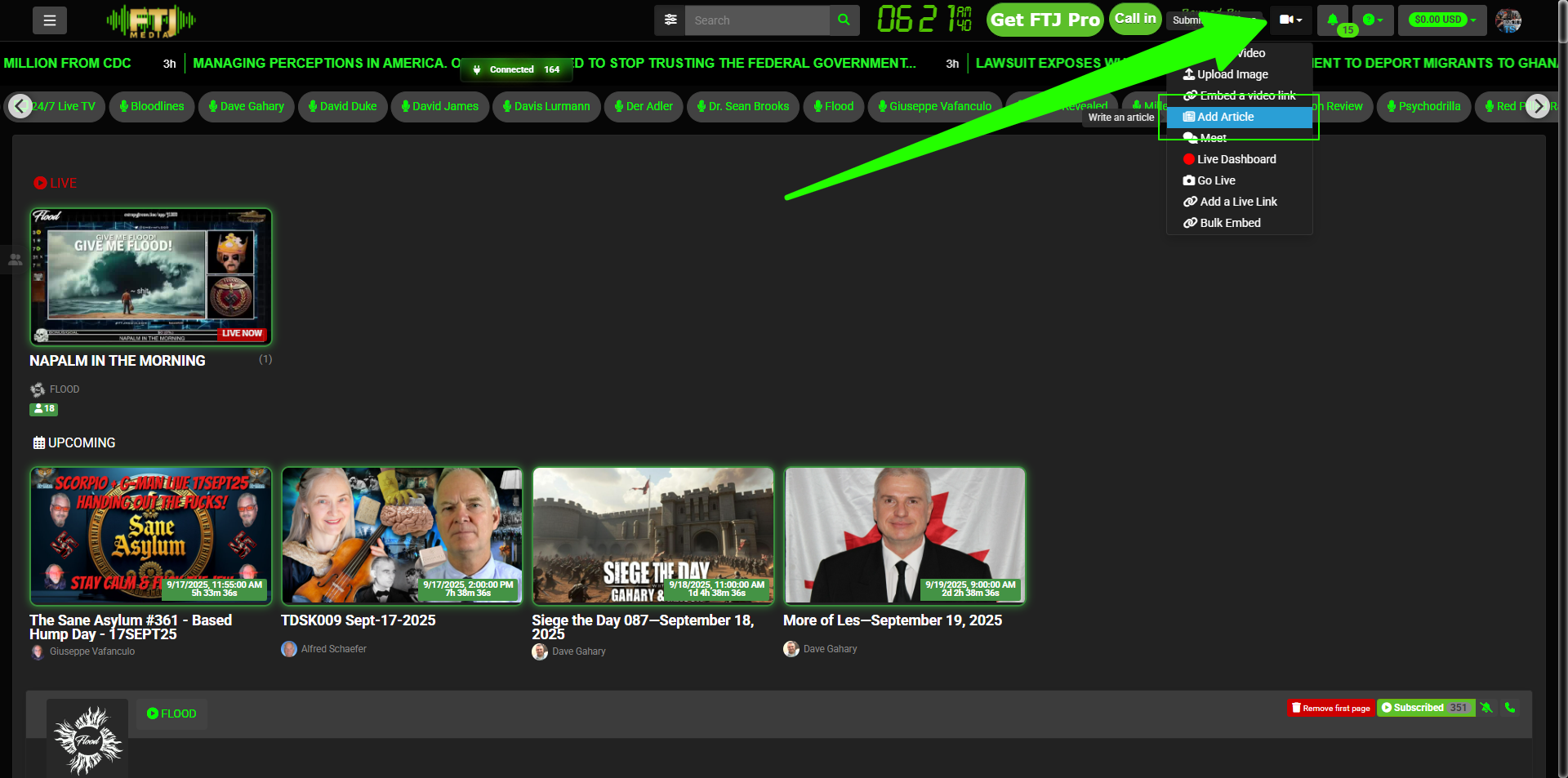
- Add your thumbnail image (recommended for better visibility).
- Enter your article content in the body field: write your text, insert images, format as needed (headings, bold, lists, etc.).
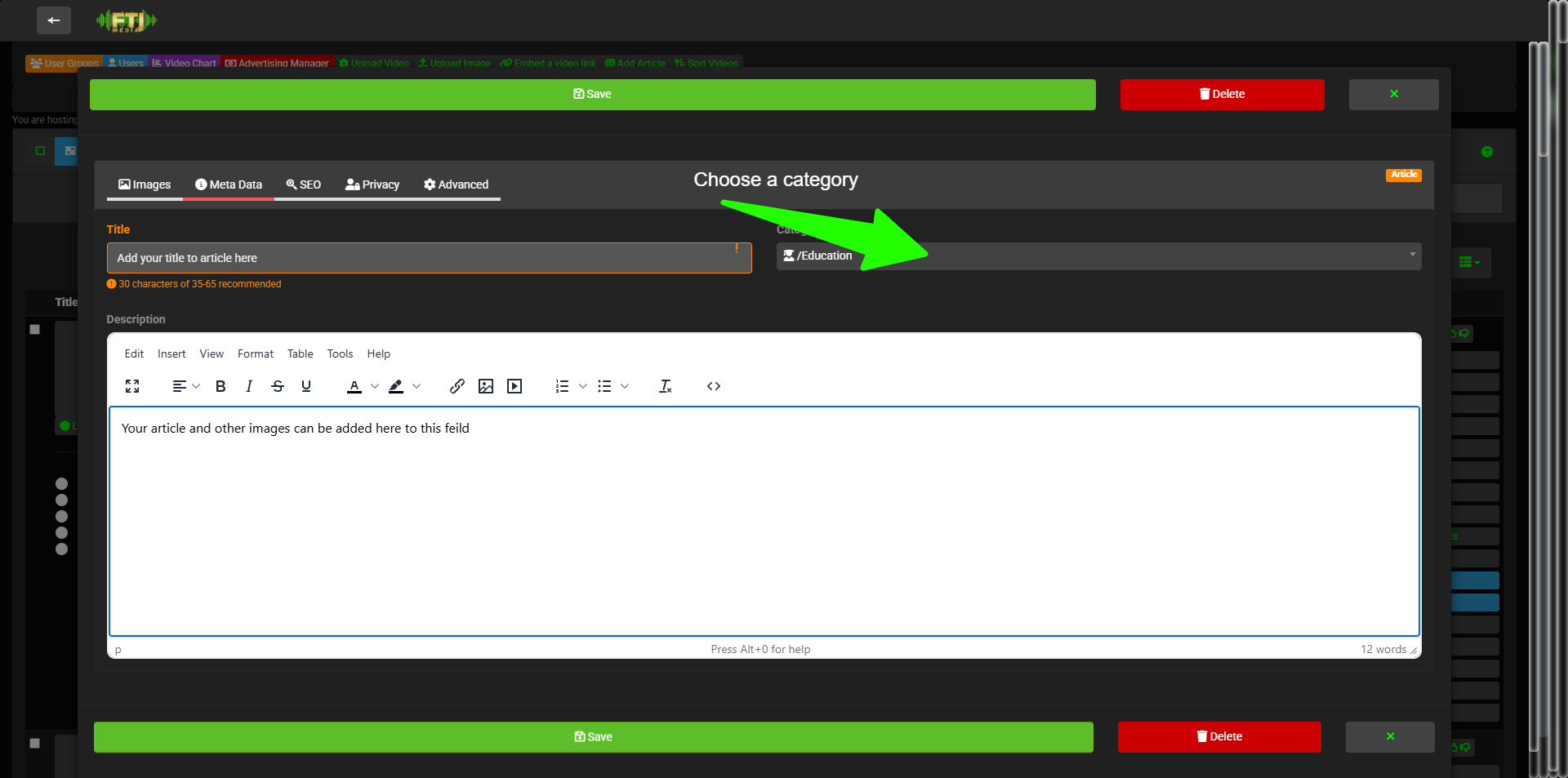
- Click Submit.
Your article will now be published and appear on your channel under a new dedicated Articles tab, making it easy for your audience to browse your written content alongside videos and streams.
Great for in-depth posts, tutorials, announcements, or blog-style updates. If the images don’t load or you need tips on optimizing thumbnails, just let me know, sir.
N) How do I delete my account?
How to Manage Your Subscription and Delete Your Account in FTJ Pro
View Subscription History and Cancel Subscription
To review your subscription details or cancel:
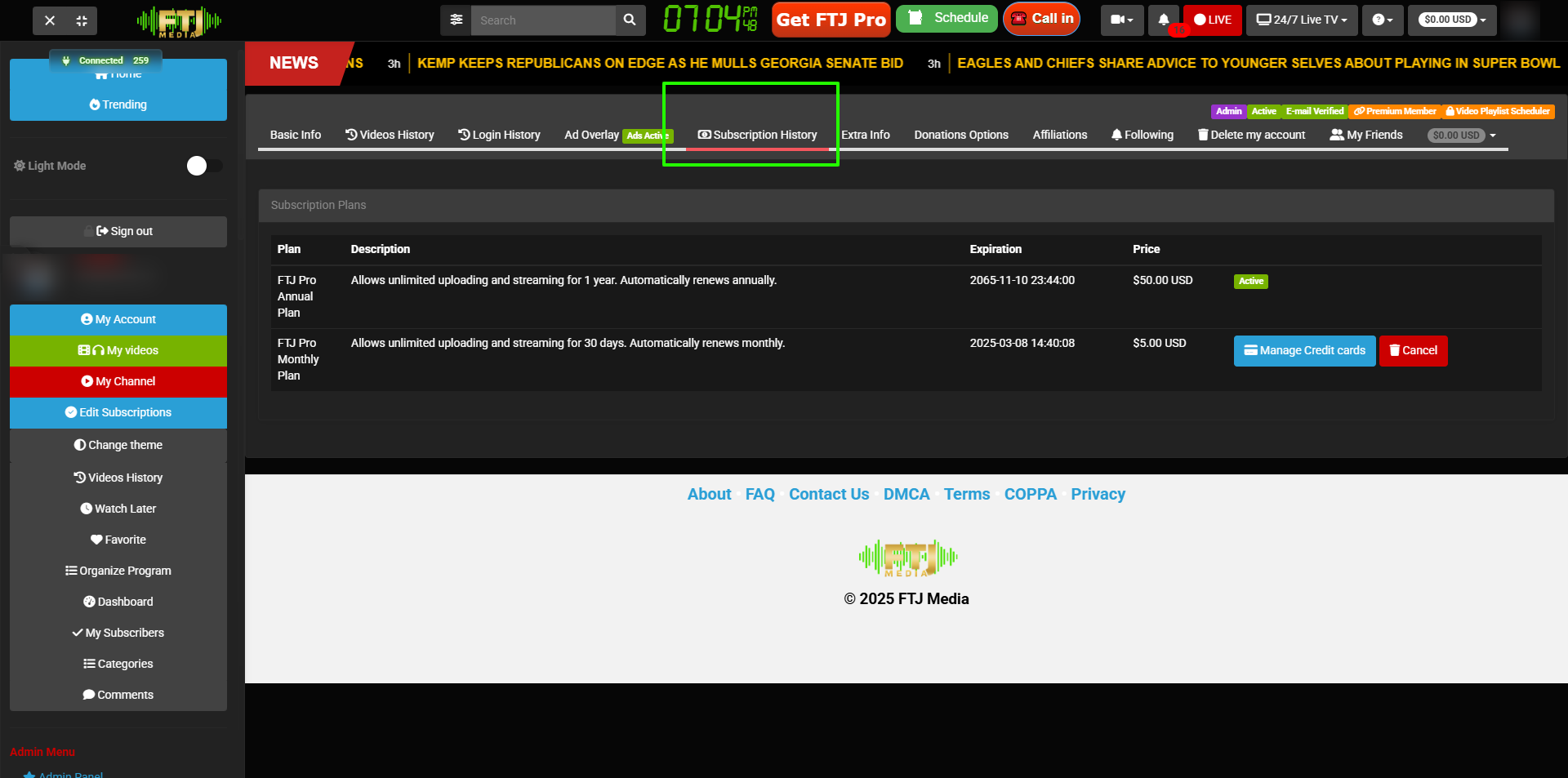
- Go to your My Account Dashboard: https://ftjmedia.com/user.
- Look for Subscription History at the top of the page.
- Once there, you will see a list of your active and past subscriptions, along with the option to cancel any active one.
Delete Your Account
To permanently delete your FTJ Pro account:
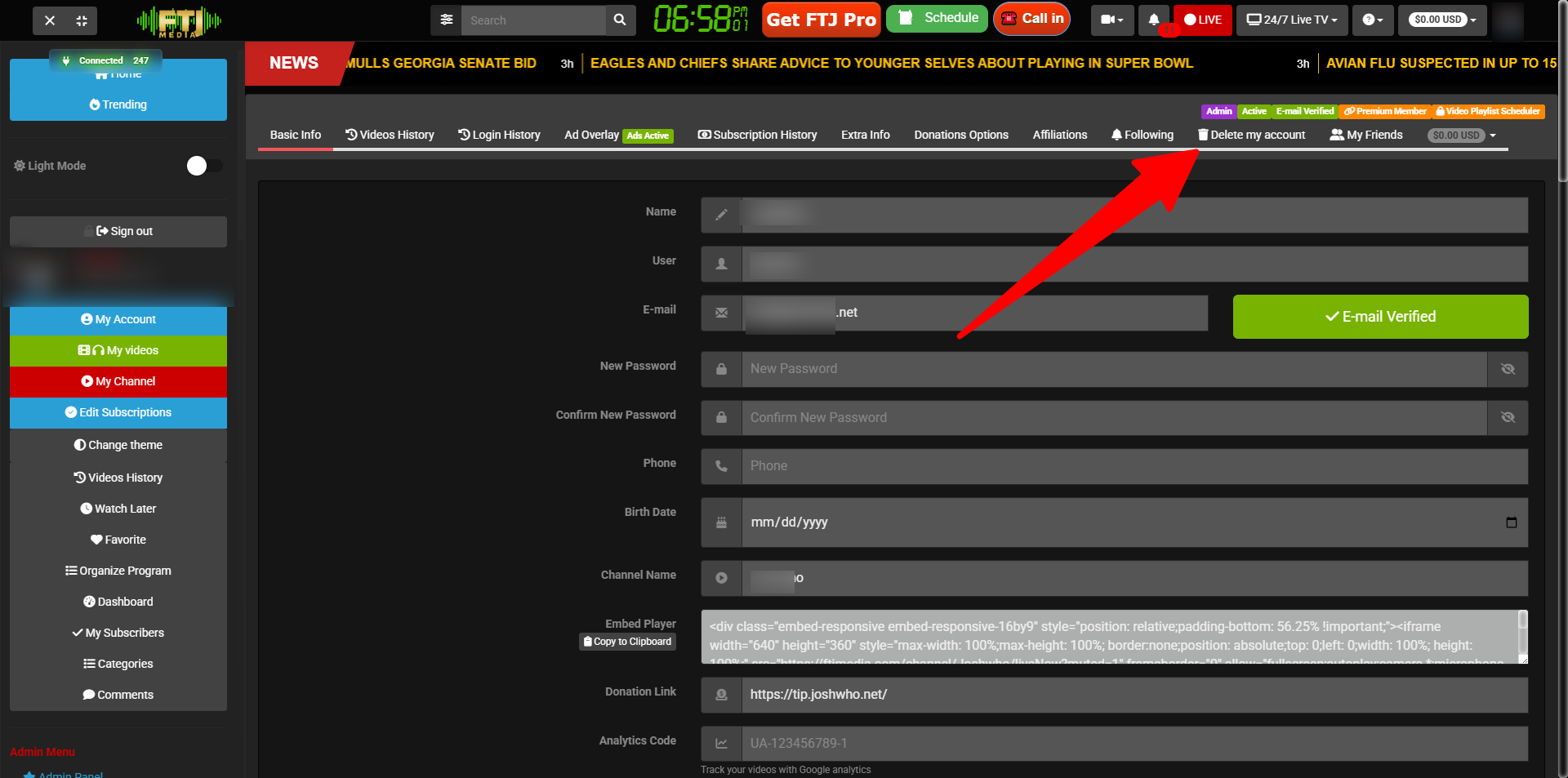
- Go to your My Account Dashboard: https://ftjmedia.com/user.
- Look for the Delete Account option in the top-right area of the page (it may appear as a button or link under account settings).
- Follow the prompts to confirm deletion (this action is irreversible and will remove all associated data, content, and subscriptions).
Always double-check before canceling or deleting—subscriptions may have renewal dates or content you wish to keep. If the images don’t load or you need assistance with the process, feel free to reach out, sir.
O) How do I create a playlist?
How to Create or Add to a Playlist in FTJ Pro
Organize your videos into custom playlists for better viewer navigation on your channel. Here’s how:
- Locate the video you want to add (on your channel, watch page, or elsewhere).
- Click the three dots (⋯) menu on the video.
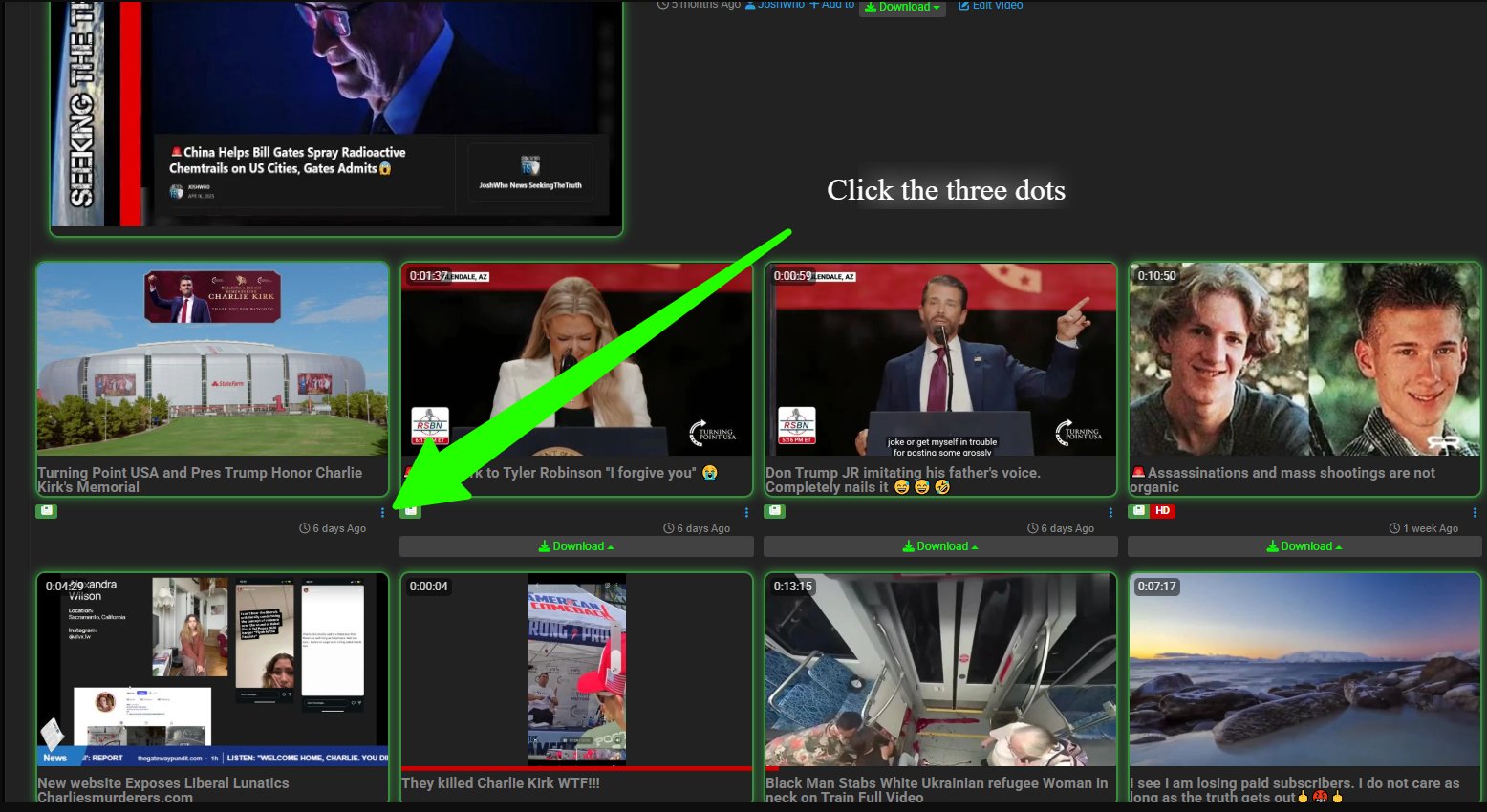
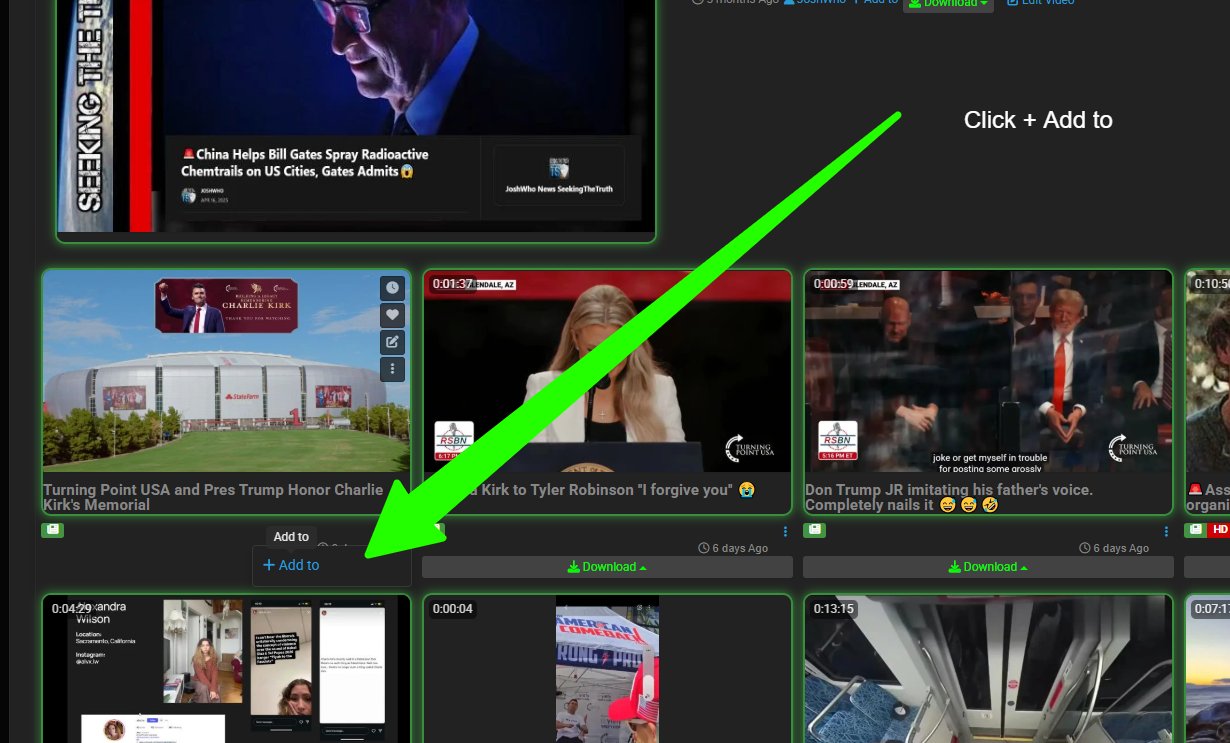
- Click + Add to.
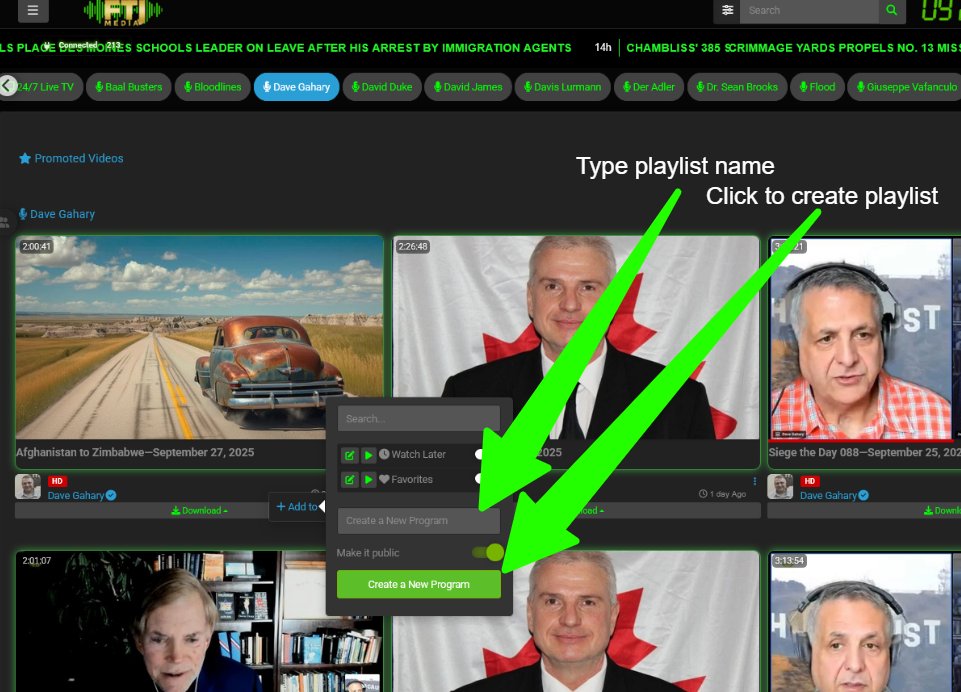
- A new menu will pop up. You can:
- Create a new playlist by entering a name, or
- Add to an existing playlist by toggling the slider switch next to it.
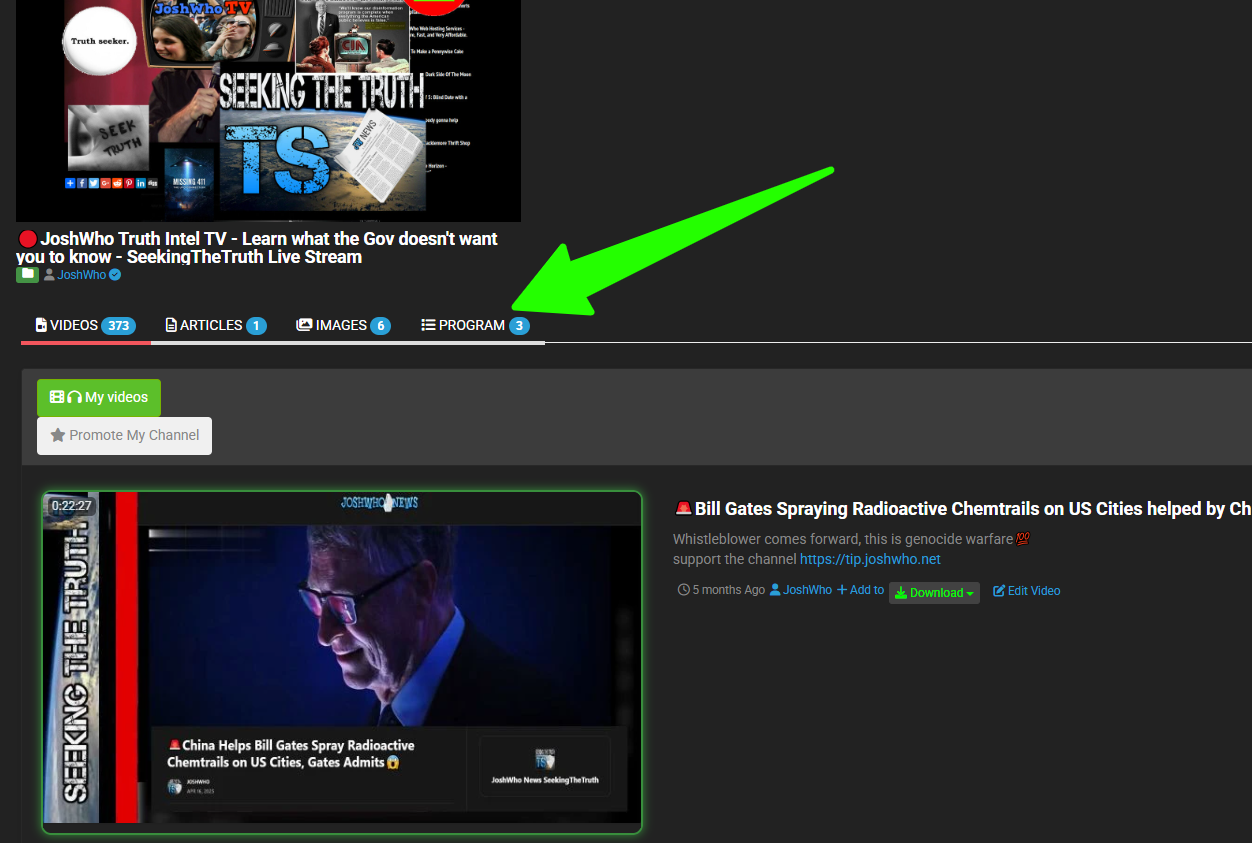
- Refresh your channel page. A new tab for your playlist will now appear at the top of your channel.
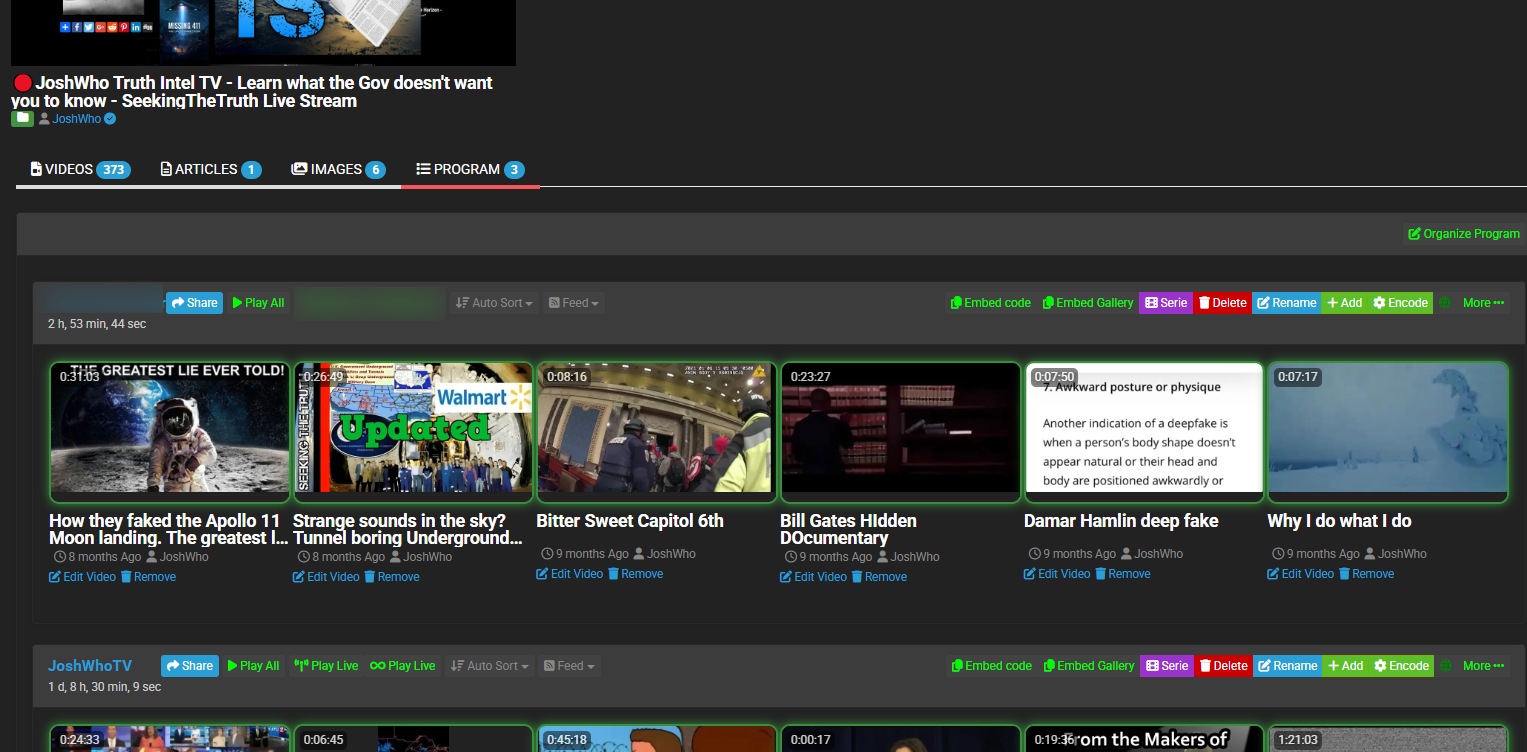
- Click the PROGRAM tab (or the playlist name) to open and view/manage your playlist contents.
That’s it—your videos are now neatly organized in a playlist for your audience to enjoy. You can add more videos anytime using the same steps.
Playlists help boost watch time and engagement. If the images don’t load or you need help renaming/deleting playlists, just let me know, sir.
P) How do I add moderators for chat?
How to Add Moderators to Your Chat Room in FTJ Pro
Moderators help you manage chat, enforce rules, and keep discussions positive. Adding them is quick and built right into the chat system.
- Open the triple dot Actions menu (⋯) in your chat room (usually at the top or in the chat header).
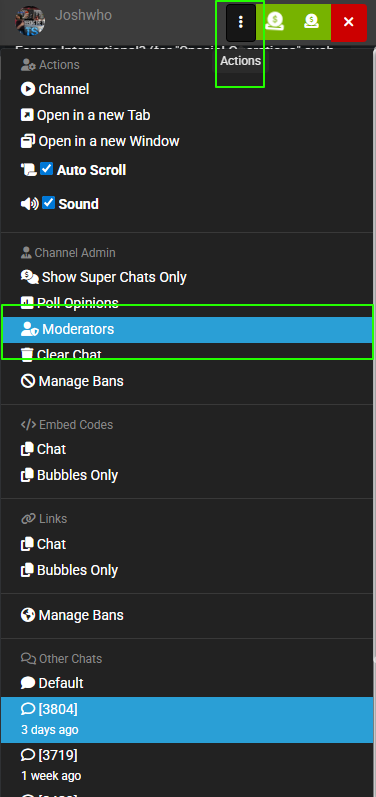
- Select Moderators. A list of users currently in the chat will appear.
- Click the slider switch next to each name you want to appoint as a moderator (the switch will turn on/green when active).
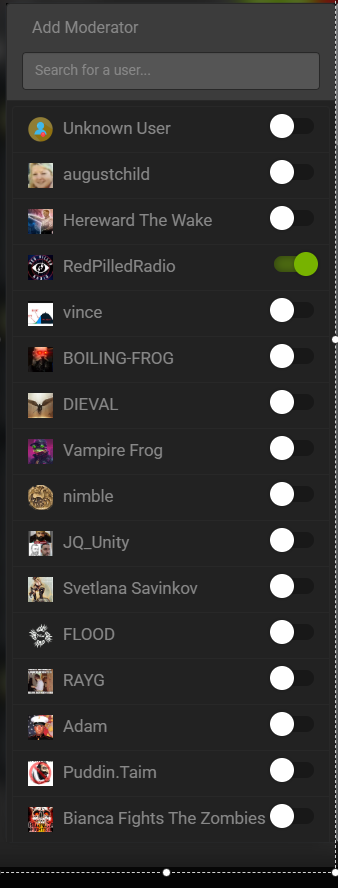
Once enabled, moderators gain tools to mute, ban, delete messages, pin important posts, and more—helping maintain order in busy rooms. You can revoke moderator status anytime by sliding the switch back off.
Choose trusted users for this role. If the images don’t load or you need info on moderator permissions, just let me know, sir.
Q) How do I remove the time lag from livestreams?
Troubleshooting Browser Issues with FTJ Pro (Clear Cache & Cookies)
The Brave browser is often the main culprit for loading or login problems on FTJ Pro. If deleting temporary files and cookies doesn’t resolve the issue, try reinstalling Brave on your desktop.
Below are concise, up-to-date instructions (as of May 2025) to clear cache and cookies in the most common desktop browsers. Restart the browser after clearing for best results.
Firefox
- Open Firefox.
- Click the menu button (three lines, top-right).
- Select Settings > Privacy & Security.
- Scroll to Cookies and Site Data.
- Click Clear Data.
- Check Cookies and Site Data and Cached Web Content.
- Click Clear.
- For selective clearing, click Manage Data to remove data for specific sites only.
- Restart Firefox.
Google Chrome
- Open Chrome.
- Click the three-dot menu (top-right).
- Go to Settings > Privacy and security.
- Click Clear browsing data.
- Select Cookies and other site data and Cached images and files.
- Choose a time range (recommend All time for a full clear).
- Click Clear data.
- For specific sites, go to Cookies and site data > See all site data and permissions.
- Restart Chrome.
Brave
- Open Brave.
- Click the menu button (three lines, top-right).
- Go to Settings > Privacy and security.
- Scroll to Clear browsing data.
- Click Clear data or Choose what to clear.
- Check Cookies and other site data and Cached images and files.
- Select a time range (recommend All time).
- Click Clear data.
- For specific sites, go to Cookies and site data > See all cookies and site data.
- Restart Brave (or reinstall if issues persist).
Safari (macOS)
- Open Safari.
- Click History in the menu bar, then Clear History (this removes cookies, cache, and other website data).
- Choose a time range (e.g., all history).
- Click Clear History.
- For cache only:
- Click Safari > Preferences > Advanced.
- Enable Show Develop menu in menu bar.
- Click Develop > Empty Caches.
- For specific cookies:
- Go to Preferences > Privacy > Manage Website Data.
- Select sites and click Remove or Remove All.
- Quit and relaunch Safari.
Additional Notes
- Mobile browsers: Steps are similar—access via the browser’s settings menu on iOS/Android. Look for Privacy, Clear Browsing Data, or equivalent options.
- Impact: Clearing cookies will log you out of websites (including FTJ Pro); clearing cache may cause sites to reload assets slowly at first.
- When to clear: Do this if pages load incorrectly, features don’t work, or you experience persistent login issues.
- These instructions are based on official documentation from Mozilla, Google, Brave, and Apple (verified as current in 2025).
After clearing, try accessing FTJ Pro again. If problems continue (especially with Brave), a full reinstall usually resolves stubborn issues. Let me know if you need mobile-specific steps or further help, sir.
R) How to download your videos?
You can download your videos in two ways.
-
Go to your channel page, find the video you want, and click its download block button to select an MP4 or MP3 quality option.
-
Click the My Videos tab in the left navigation bar, scroll through your videos, and use the download options for any video in the list.